
Multi-source addons have a built-in Kodi autoplay feature that is handy for automatically starting streams. You can also combine this feature with another to automatically play the next episode, similar to Netflix, no interaction required. Read our guide for more details.
If you want to automate your experience more and reduce the number of button clicks from main menu to streaming, there is a handy built-in Kodi autoplay feature in most multi-source addons you may want to enable and check out. Check out some advantages, disadvantages, and troubleshooting tips if Kodi autoplay is not working, below. As well, there is a second feature that allows you to autoplay more than one episode right after each other with no user interaction required!
Enabling autoplay in Kodi isn’t recommended for everyone. If you are a power user and like ultimate control, we don’t recommend this. If you are a casual user who doesn’t understand it when we talk about providers and resolvers and you want your Kodi to do the heavy lifting for you in picking a stream, follow along.
How to Enable Kodi Autoplay
Autoplay functionality is available in most multi-source Kodi addons today, such as Incursion, Neptune Rising, Placenta, etc. The feature was added to the original Exodus release, so is present in all addons that are a fork of that.
- First, head into your video addons by navigating to Add-ons > Video Add-ons.
- Hover over the addon you want to enable Kodi autoplay stream on and press the menu (‘c’) button. Click on Settings.
- Go into the Playback tab.
- Change the Default Action to be Autoplay
And that’s it, autoplay in Kodi is now enabled.
How to Use Kodi Autoplay Feature
Using autoplay in Kodi is easy. In your addon, you go through the menus as normal to find the movie or episode information you want the addon to look up. The providers search window will come up as normal like below.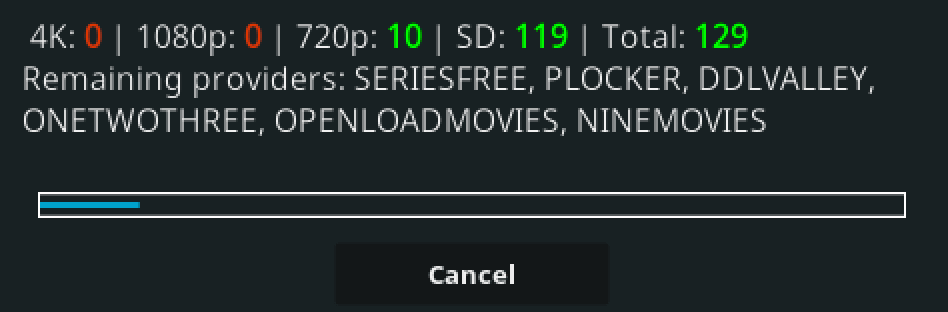
NOTE: You can click “Cancel” if one provider is hung up and you are satisfied with the total number of streams present),
After the providers are finished searching, instead of the traditional “Select a Stream” window, Kodi will automatically begin at the top of your list to try and play each stream. When a stream is found, it begins to play automatically without you having to manually try each stream yourself!
Kodi Autoplay Advantages and Disadvantages
So you may be interested in enabling this feature, but aren’t quite sure what the point is or why? Well, depending on how much you use Kodi, autoplaying streams has a nice of really nice things about it:
For autoplay advantages, you now have less button clicks in order to begin your stream. There is no need to manually select a stream or learn about which scrapers and resolvers work the best for you. Sit back and let Kodi do most of the heavy lifting.
For disadvantages, since you no longer have control in picking your streams, Kodi sometimes auto-picks one that requires the pairing process (unless you have Real-Debrid or Premiumize!). As well, you’ll have no control over the quality of stream picked and your addon may pick a file host that is prone to buffering for you. Multi-source addons do have some features which can reduce this in the settings however, like the ability to disable non-HD and non-working providers.
Kodi Autoplay Next Episode
For an even more hands-off Kodi experience, you can combine the Kodi autoplay feature above with another feature in Kodi to automatically play the next episode of a TV series without any button clicks at all! If you know you are about to sit back and binge-watch three episodes of Friends, the following tip is the easiest way to do that.
Navigate through the menus of your multi-source Kodi addon, picking the show you want and drilling down into the seasons page where all of the episodes for that season are listed. Choose your starting episode and hover your cursor over top of it. Press the menu (‘c’) button and then select Play From Here.
Kodi will start by using autoplay to play your first episode. When the episode is completed, Kodi autoplay invokes the next stream selection process automatically. If everything works correctly, there are no button clicks required from you at all!
Kodi Autoplay Not Working
If your autoplay features are not working as intended, here are some Kodi tips and tricks you can use to fix your problems or understand them better.
- From the main menu, navigate to Settings > Player Settings.
- In the Videos tab, make sure that Play Next Video Automatically is turned OFF.
The setting above is for local library playback, videos you have stored in your local Kodi library. Users have reported issues with this setting causing the Kodi autoplay function to not work.
Sometimes, autoplay may just fail due to natural multi-source Kodi circumstances. For example, there may be no streams available for what you are trying to watch. Newer content is always more popular in Kodi so test out this feature with something more recent in order to troubleshoot.
If you have any symptoms or details about Kodi autoplay not working, let us know on Twitter or Facebook or by commenting below and we will help other users out.
PROTECT YOURSELF ON THE INTERNET
Sign up for a premium Kodi VPN and access the internet unrestricted. We offer exclusive discounts for IPVanish and NordVPN, the highest respected VPNs in the Kodi community. Both of these VPNs have some great features for users:
Apps for Android, iOS, Mac, Linux & more
Zero Logs
Unlimited bandwidth
Tier 1 hardware (no speed slowdown)
Access to servers hundreds of VPN servers