
In this guide, I’ll show you how to install the new Buds Kodi addon. Buds is a Fen fork with tons of HD links, Easynews and Furk support, and tons of custom code built for the addon.
Come check out all of the unique things about Buds and why you should add it to your Kodi addon collection today.
Our full guide below includes features list, sections list, setup guide, and tips to make sure that the addon is working great for you!
Buds Kodi Features
The Buds Kodi addon is multi-source addon that is built upon the old Fen code. Fen was shut down by the developer following previous threats of legal action from media companies.
Buds is similar to Ezra, another Fen fork. We aren’t sure which addon will become more popular yet, so we’ve covered both in detail.
One of the perks of Buds is that it support both Easynews and Furk, two premium providers. Easynews is a usenet provider, which gives access to private servers with millions of media files that never get removed (unlike a free file host).
A full list of Buds Kodi features are:
- Full free user support from native scrapers and ResolveURL
- Cached torrent support
- Easynews support
- Furk support
- Download support
- Quickly access your Kodi library
- Search Trakt, Easynews, Furk, or by People
Buds Sections
After installing the Buds Kodi addon, you’ll see the following sections from the main menu:
- Movies
- TV Shows
- Music
- Search
- Furk
- My Trakt Lists
- Favourites
- Subscriptions
- Watched
- In Progress
- Downloads
- Kodi Library
- Tools
- Settings
How to Install the Buds Kodi Add-on Quickly

This guide will show you how to install the Buds Kodi addon.
Total Time: 2 minutes
Access SYSTEM Page
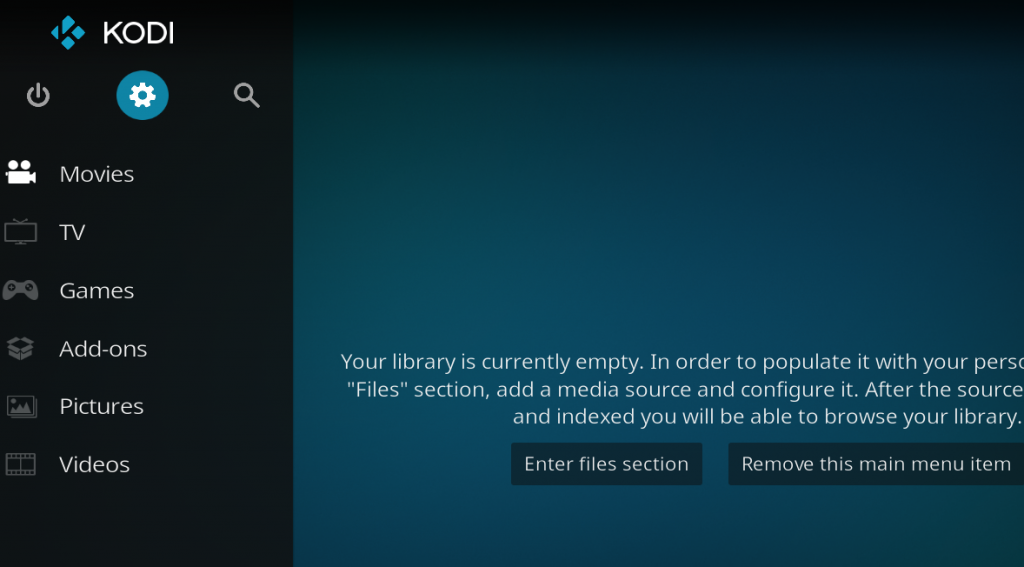
Access the Kodi SYSTEM screen by clicking on the gear icon on the Kodi main menu.
Click on File Manager
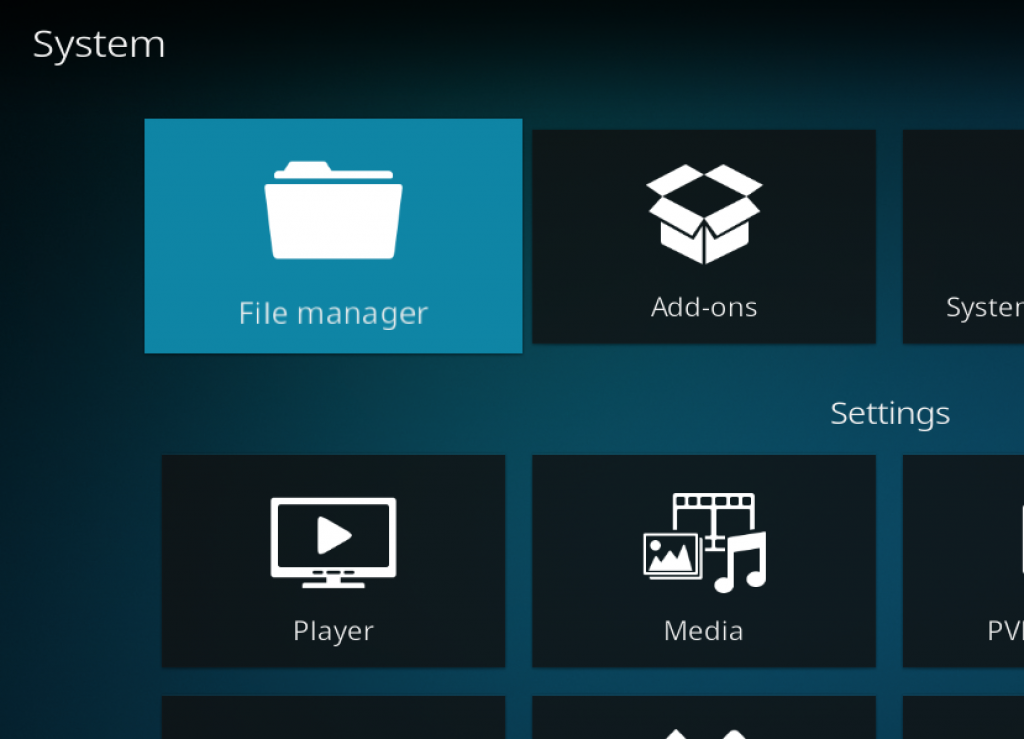
Click on the File Manager tile.
Select Add Source
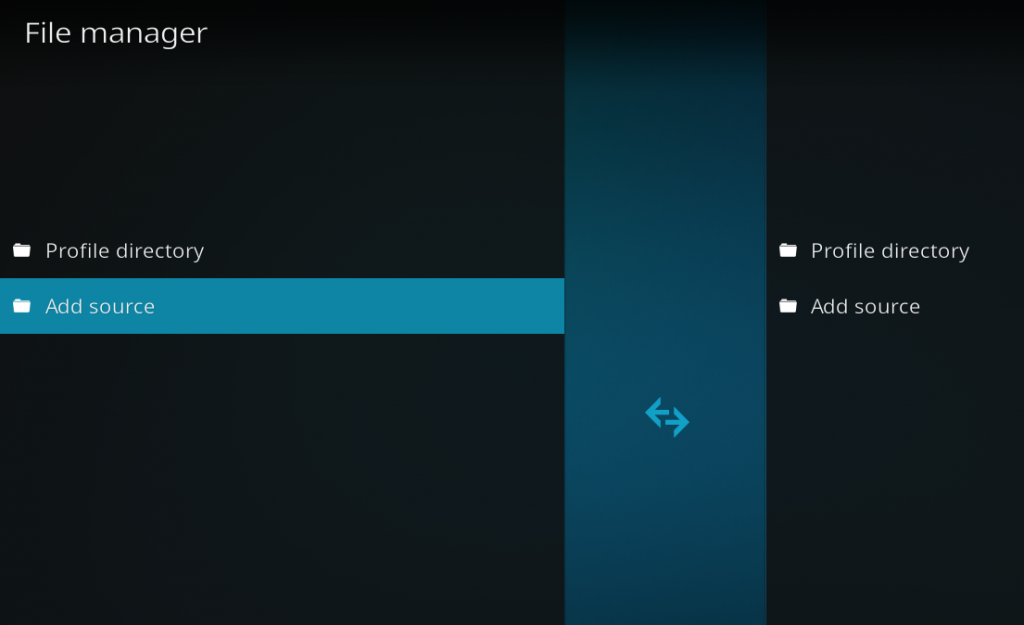
Click on Add Source at the button of the left side pane.
Add File Source
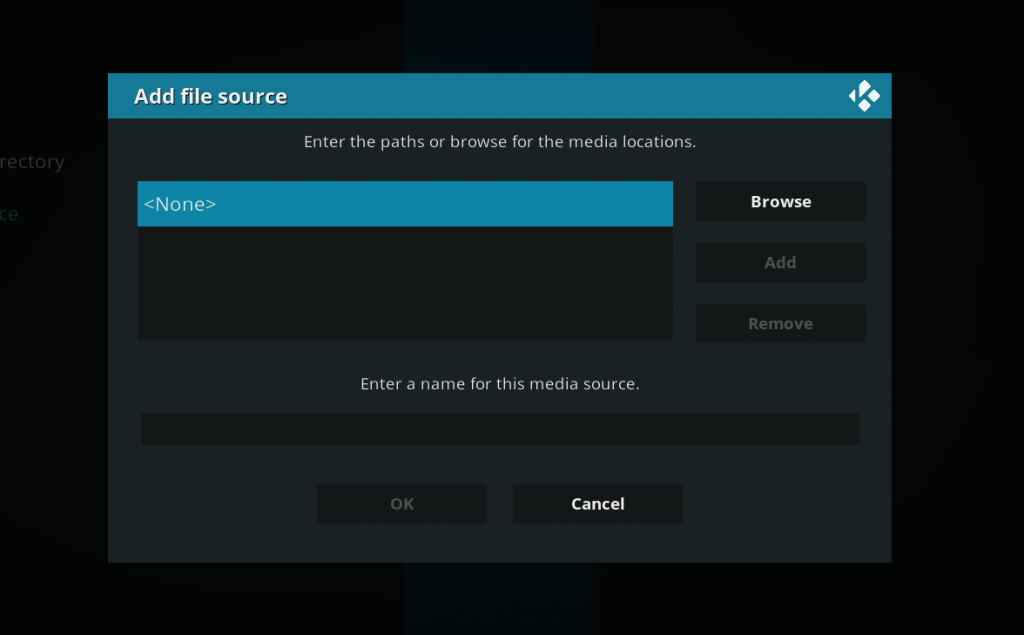
First, click on None and enter in https://southpawlefty2468rocky.com/repo and then select Done.
Click on the empty box underneath “Enter a name for this media source” and name it .paw and then click on OK.
Access Kodi Add-ons screen
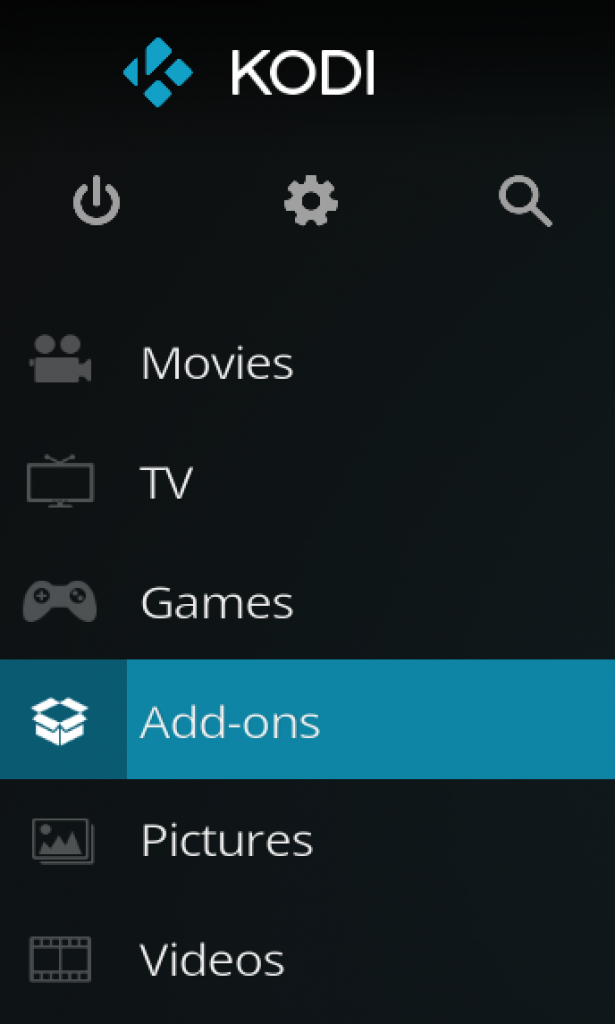
Go back to the Kodi home screen and then click on the Add-ons button.
Select the Add-on Browser
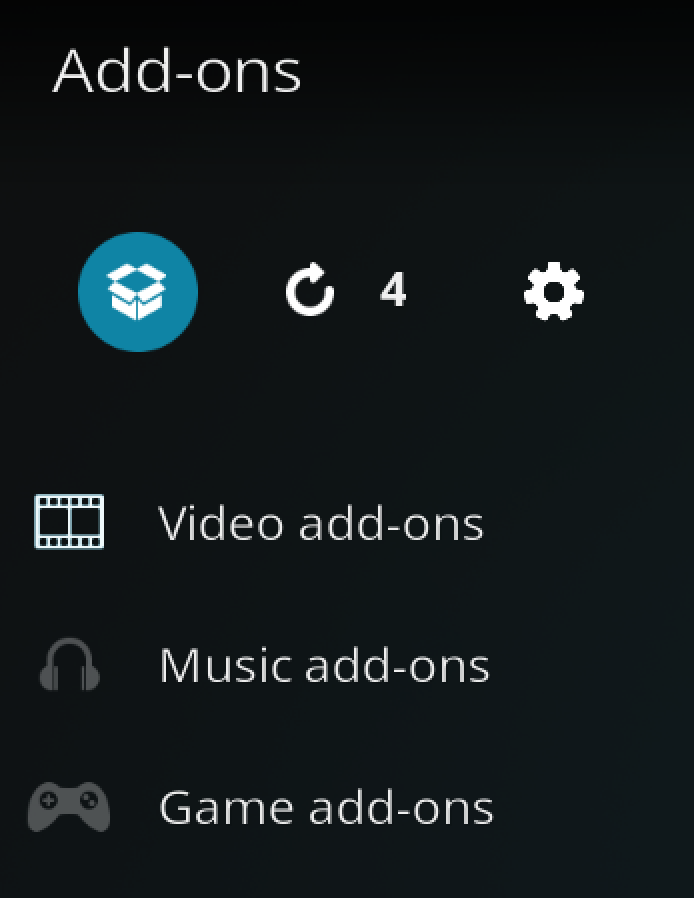
Access the Kodi Add-on Browser by clicking on the package icon in the upper-left corner of this screen.
Install the Southpaw Repository
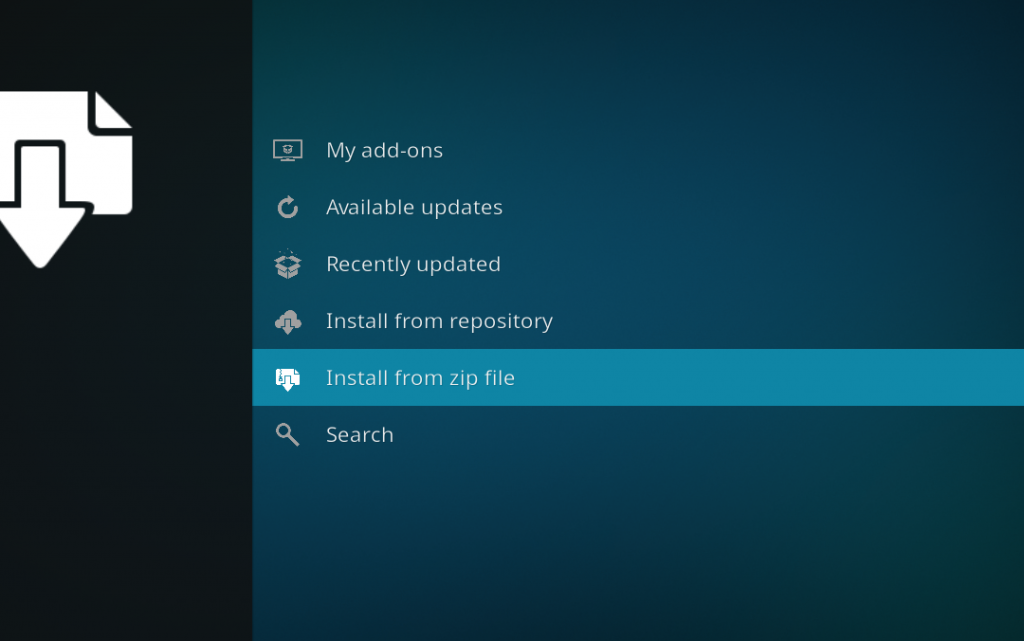
Install the Southpawlefty repository by clicking on Install from Zip File then .paw then repository.southpaw-x-x-x.zip and waiting for the repository installed icon to appear in the top right corner.
Install the Kodi Kodi Addon
Next, select Install From Repository then Southpawlefty Repo then Video Add-ons then Buds. Click on Install and wait for the Add-on Enabled Notification.
How to Properly Setup the Buds Kodi Addon
To give yourself a fresh start after installing Buds, follow these instructions:
Activate Your Premium Accounts
From the main menu, navigate to My Accounts > Settings > Add Trakt/Real Debrid/Premiumize accounts and follow the instructions for each option to activate your premium accounts in Ezra.
Sync Scrapers
Go to Scrapers Settings > Scraper accounts > Sync with my accounts to sync your scrapers into the addon.
Also, go into Buds settings > Meta accounts > Sync with my accounts and follow those instructions.
Clear Cache
Finally, clear the cache in the addon by going into Buds and navigating to Tools > Clear database and setting files > Clear all cache.
Buds Cached Torrent Tip
If you have a debrid account setup in Buds, you can cut down on your search time significantly by turning on cached torrents only and enabling torrent scrapers in the Tikiscraper settings.
Typically, searches with these settings take well under 20 seconds and you are assured of only seeing links which are definitely available to streak (no dead links!). If you subscribe to Furk, turn those scrapers on too in Bud’s settings.
Buds Additional Scrapers
In the settings of Buds, there is a Scrapers tab that allows you to setup custom scrapers that are unique to the addon.
When you go into this section of the settings, here are your options:
- Furk – You must enter your Furk account details.
- PM Cloud – Allows you to stream directly from your Premiumize cloud.
- RD Cloud – Allows you to stream directly from your Real Debrid cloud.
- Local Library – Lets you play media files stored on your local computer or server.
- Downloads – Let’s you play from the downloads folder
- Source 1/Source 2/Source 3 – Custom sources that you can setup tp import scraper modules from any other addon.
That’s it! When you search for a media title, it will bring in results from Furk. As well, the Search section of the Buds Kodi addon also has specific searches for Furk as well.
Give this addon a try and let us know what you think by commenting below or getting in touch with us on Twitter!
PROTECT YOURSELF ON THE INTERNET
Sign up for a premium Kodi VPN and access the internet unrestricted. We offer exclusive discounts for IPVanish and NordVPN, the highest respected VPNs in the Kodi community. Both of these VPNs have some great features for users:
Apps for Android, iOS, Mac, Linux & more
Zero Logs
Unlimited bandwidth
Tier 1 hardware (no speed slowdown)
Access to servers hundreds of VPN servers


Disclaimer
We have no control over and do not host or upload any video, films, media file, or live streams. KodiTips is not responsible for the accuracy, compliance, copyright, legality, decency, or any other aspect of the content of streamed from your device. If you have any legal issues please contact the appropriate media file owners or host sites.