
In this tutorial guide, I’ll show you exactly how to install AIOStreams in Nuvio on your Firestick, Android TV, or Google TV device, plus how to add it from your phone so you don’t have to type a long URL with a remote.
AIOStreams is a free, open-source “super addon” that combines several stream addons and your debrid service into one clean list of sources. You configure it once in a web browser, and Nuvio only needs a single URL to use it.
The whole setup comes in two parts: building your AIOStreams configuration, then adding its URL to Nuvio. I’ll also cover which AIOStreams instance to pick, whether you can use it without debrid, and what to do if it stops showing streams.
AIOStreams Nuvio Addon Quick Facts
| Addon Name | AIOStreams |
| Developer | Viren070 (open source on GitHub) |
| Addon Type | Stream aggregator (sources only, no catalogs) |
| Cost | Free (a debrid service is optional but recommended) |
| Debrid Support | Real-Debrid, TorBox, Premiumize, AllDebrid, Debrid-Link, EasyDebrid, Debrider, Offcloud, PikPak |
| Where You Configure It | Any web browser, on a public or self-hosted instance |
| What Nuvio Needs | One manifest URL |
| Works With | Nuvio TV (Firestick, Android TV, Google TV) and Nuvio Mobile (Android and iPhone) |
What Is AIOStreams and What Does It Do in Nuvio?
AIOStreams takes a group of popular stream addons (Comet, MediaFusion, StremThru Torz, Knaben and more) and wraps them into one addon. You enter your debrid API key once, AIOStreams passes it to every addon inside it, then removes duplicate results and sorts everything into a single list. So when three addons find the same file, you see it once instead of three times.
Without it, you’d install four or five separate addons in Nuvio and paste your Real-Debrid key into each one. With it, Nuvio sees one addon and one tidy list of streams when you pick a movie or episode.
Keep in mind that AIOStreams supplies streams only. It doesn’t add movie and TV show rows to your home screen. Those come from a catalog addon like AIOMetadata or Nuvio’s built-in catalog, which is why “AIOStreams no catalogs” is such a common search. If you want a full starter kit, our best Nuvio addons guide pairs it with the right catalog and subtitle addons.
AIOStreams Nuvio Features You Should Know About
Ready-Made Setups (Templates)
You don’t have to build a configuration from scratch. AIOStreams now opens with a “ready-made setup” option that loads a template someone has already tuned. The built-in Debrid Starter template installs five addons for debrid users, and the Tamtaro Complete SEL Setup template works with or without a debrid service and can pull in up to 20 addons. The choice is simple: if you have a debrid account, start with Debrid Starter, and if you don’t, Tamtaro is the one that still works without a service.
One Debrid Key for Every Addon
AIOStreams supports nine debrid services plus TorBox Usenet. You add your API key once in the Services section, and every compatible addon inside AIOStreams uses it automatically. If you ever change debrid providers, you update one field instead of five addons.
Filters, Sorting, and a Custom Formatter
Filtering is the main reason to use AIOStreams over separate addons. You can hide results below a certain resolution, prioritize cached debrid links, remove duplicates, and change how each stream is labeled in Nuvio’s source list. You don’t need any of it on day one, but it’s there when you want a cleaner list.
What We Like and What We Don’t Like About AIOStreams
What We Like
- One addon replaces four or five separate stream addons in Nuvio
- Enter your debrid key once instead of in every addon
- Ready-made templates get beginners working in a few minutes
- Duplicate results are removed automatically
- Free and open source
What We Don’t Like
- Your configuration and API key sit on someone else’s server unless you self-host
- The popular ElfHosted public instance blocks Torrentio and free P2P streams
- The settings pages can feel overwhelming once you go past the template
What You Need Before You Install AIOStreams in Nuvio
Before you start, have these ready:
- Nuvio installed on your device. If you haven’t done that yet, follow our Nuvio install guide for Firestick and Android TV, or use our Nuvio Downloader code (2525208) to grab it in a few seconds.
- A debrid account and its API key (recommended). Real-Debrid and TorBox are the two most common choices. Not sure which one? Our Real-Debrid alternatives guide compares them.
- A phone or computer with a web browser. You’ll build the AIOStreams configuration there, not on your TV.
- A TMDB API key (optional). The ElfHosted instance supplies a default key, so you can leave this blank for now.
Best AIOStreams Instance for Nuvio: ElfHosted vs Community Instances
AIOStreams is software that anyone can host, and each hosted copy is called an instance. Your configuration lives on whichever instance you pick, so choose one and stick with it.
| Instance | URL | Channel | Restrictions |
|---|---|---|---|
| ElfHosted | aiostreams.elfhosted.com | Stable | No Torrentio, no P2P or HTTP streams |
| Yeb’s | aiostreams.fortheweak.cloud | Stable | None listed |
| Midnight’s | aiostreamsfortheweebsstable.midnightignite.me | Stable | None listed |
| Viren’s (developer) | aiostreams.viren070.me | Nightly | None listed |
Here’s how I’d choose:
- If you have Real-Debrid or TorBox, ElfHosted is the easiest pick. It’s sponsored, stable, and the restrictions don’t matter much when every stream comes through your debrid service.
- If you want Torrentio or free P2P streams, use a community instance like Yeb’s or Midnight’s. ElfHosted disables those on its public instance.
- If you’re a beginner, stick with a Stable instance. Nightly instances update constantly, so the menus may not match these steps.
If an instance suddenly stops working, check the community AIOStreams status page before assuming your setup is broken. ElfHosted also sells a private instance if you’d rather not share rate limits with everyone else.
Is AIOStreams Nuvio Addon Safe to Use?
The AIOStreams Nuvio addon is open source, so anyone can read its code, and the major public instances are run by well-known community members. The bigger safety question is trust: your debrid API key is stored in your configuration on the instance operator’s server.
In practice that means using a reputable instance from the official list, never sharing your manifest URL in public (it’s tied to your configuration), and changing your debrid API key if you ever stop trusting an instance. For full control, you can self-host AIOStreams instead.
Nuvio and AIOStreams also don’t hide your IP address from your internet provider or from the sources you stream. A VPN will give you an anonymous connection while streaming through Nuvio addons. Click here to view the #1 VPN for streaming.
Learn how to install and configure your VPN here.
How Do You Stay Protected While Using Nuvio?
Sign up for a premium VPN and access the internet unrestricted. We offer exclusive discounts for IPVanish and NordVPN, the highest respected VPNs in the streaming community. Both of these VPNs have some great features for users:
- Apps for Android, iOS, Mac, Linux & more
- Zero Logs
- Unlimited bandwidth
- Tier 1 hardware (no speed slowdown)
- Access to hundreds of VPN servers


How to Install AIOStreams Nuvio Addon on Firestick or Android TV
These steps work on Firestick, Fire TV, Android TV, and Google TV. Steps 1 to 7 happen in a web browser on your phone or computer. Steps 8 to 12 happen in Nuvio on your TV.
This guide will show you how to install AIOStreams in Nuvio on Firestick, Android TV, or Google TV.
Total Time: 10 minutes
Open an AIOStreams Instance
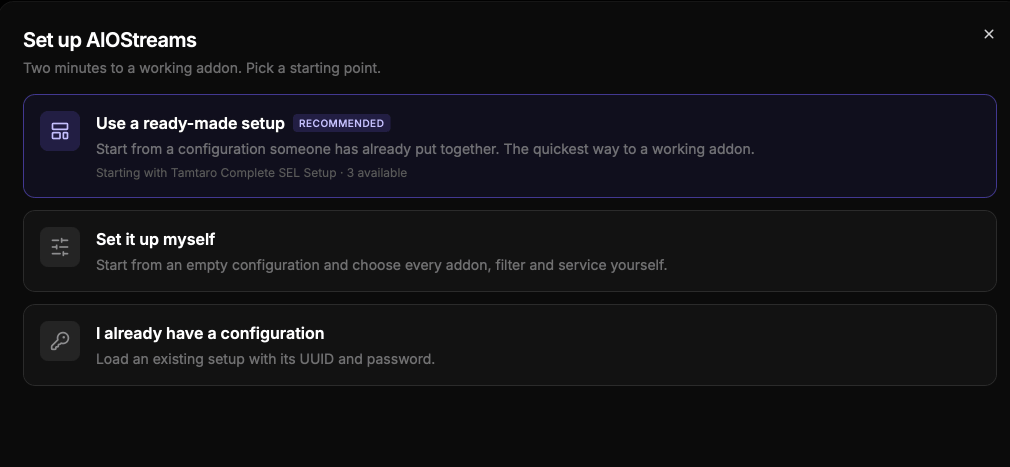
On your phone or computer, open a web browser and go to aiostreams.elfhosted.com (or the community instance you picked above). Click Start setup, then choose Use a ready-made setup.
Pick the Debrid Starter Template
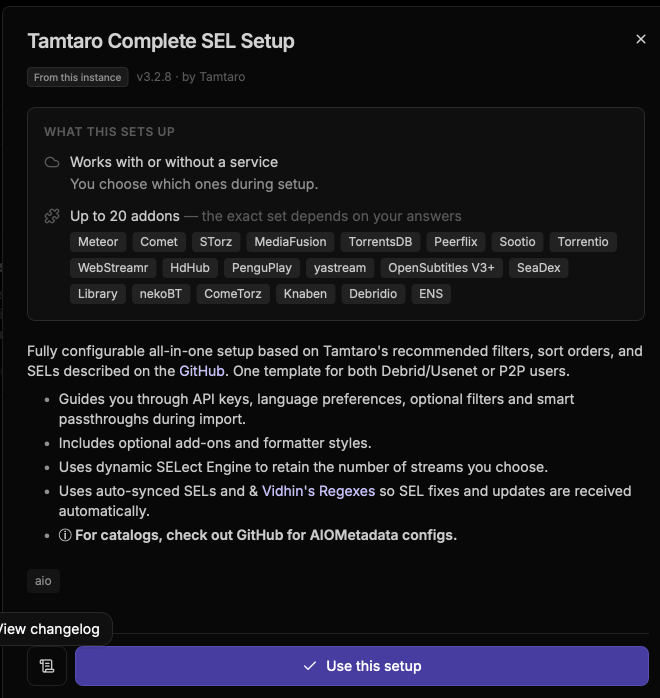
Select Debrid Starter, then click Use this setup. On ElfHosted, you’ll see a warning that Torrentio isn’t available. That’s expected, so click Load Anyway. The other four addons still load.
Choose Your Debrid Service
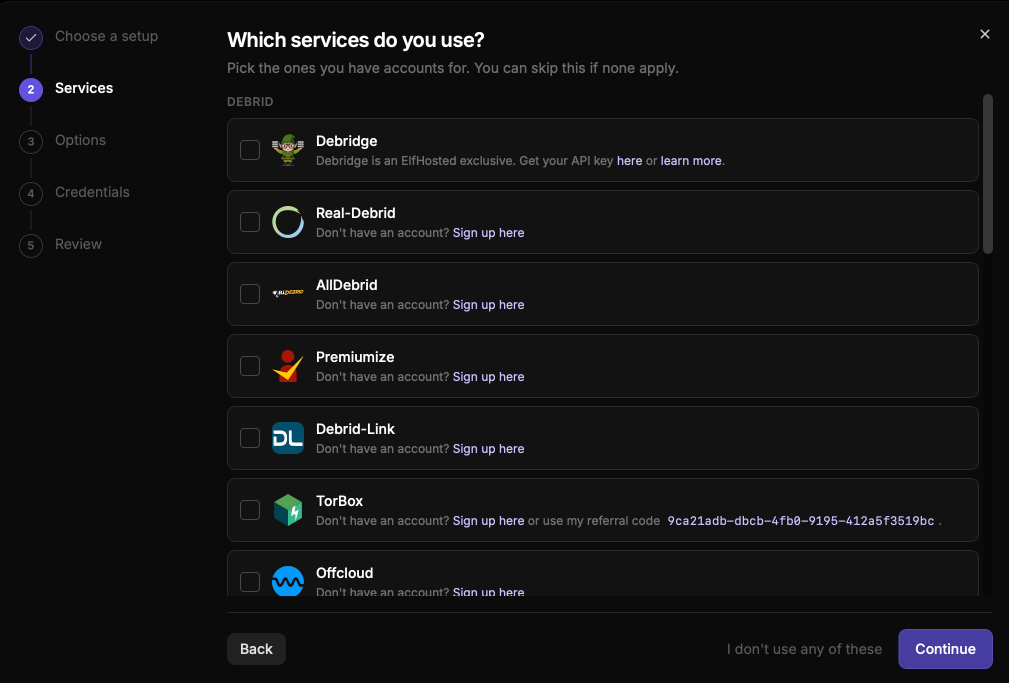
Add the debrid services you want to add here to load them into your AIOStreams Nuvio addon.
Paste Your Debrid API Key
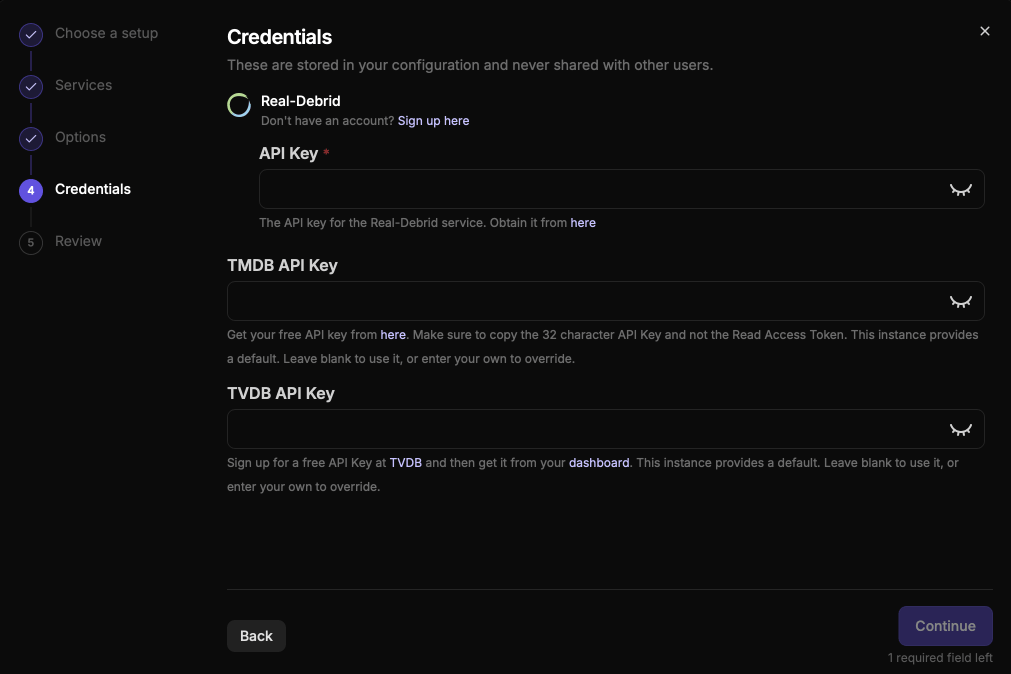
On the Credentials screen, paste your debrid API key. Leave the TMDB API Key field blank to use the instance’s default, then click Continue and finish the Review screen.
Create Your Configuration
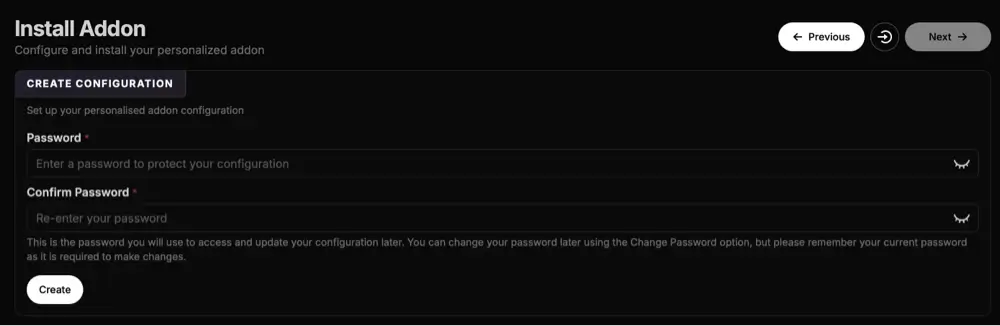
Open the Save & Install page (the save icon in the left menu). Enter a password, confirm it, and click Create.
Save Your UUID and Password
AIOStreams now shows a UUID. Write it down along with your password. You’ll need both to change your settings later.
Copy the Manifest URL
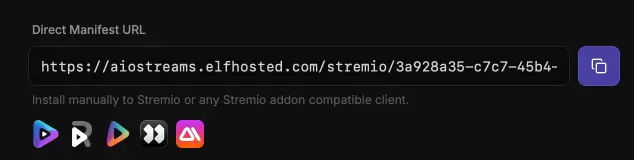
Click Install, then Copy URL. This is your personal AIOStreams manifest URL, and it’s the only thing Nuvio needs. Keep it private.
Open Addons in Nuvio
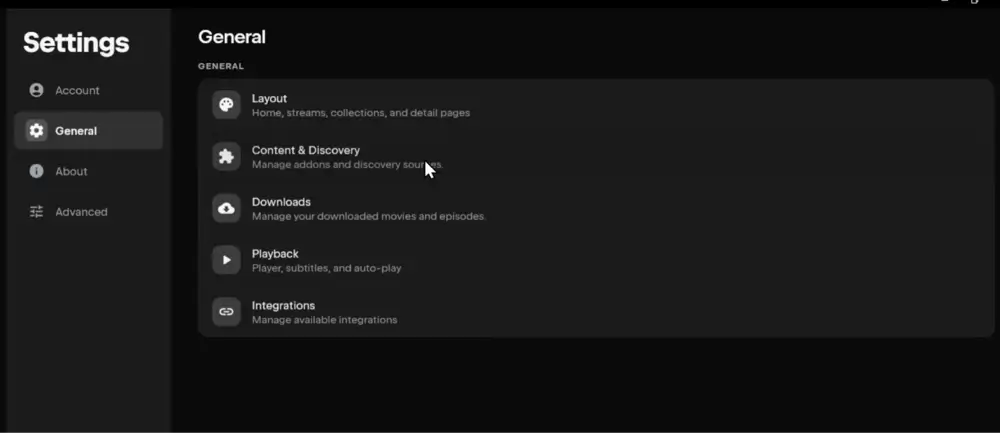
Launch Nuvio on your TV and open Addons from the side menu. You can also get there through Settings, then Content & Discovery, then Addons.
Select Install Addon
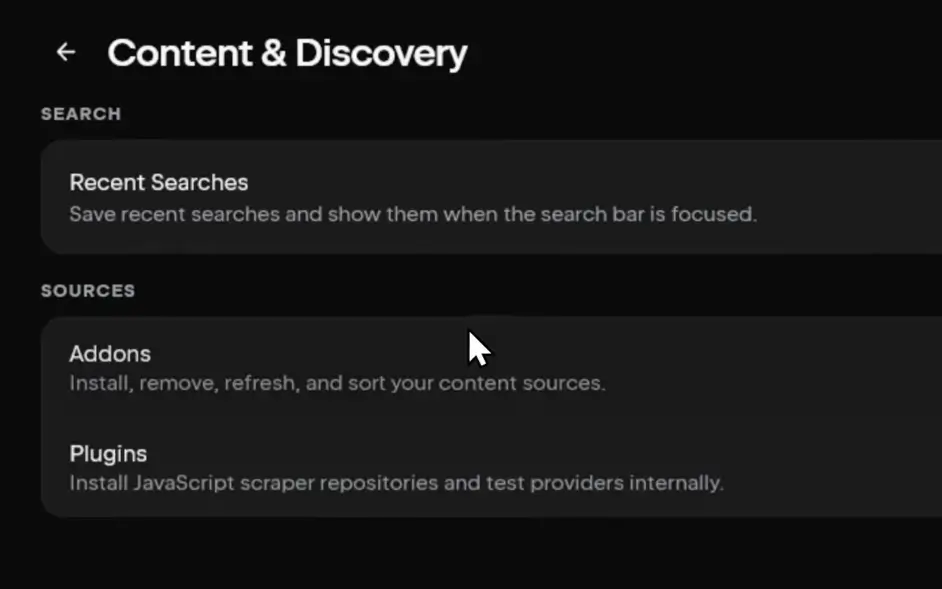
Select the Install addon field at the top of the Addons screen.
Paste the URL and Click Install
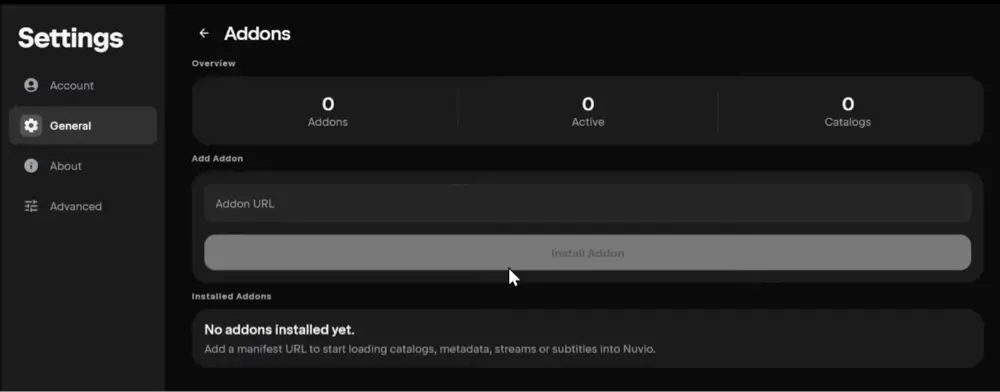
Enter your AIOStreams manifest URL and select Install. Typing it with a remote is slow, so the QR code method below is easier on a Firestick.
Confirm AIOStreams Is Installed
Nuvio shows a short Installed confirmation, and AIOStreams appears in your Installed list.
Test a Movie or Episode
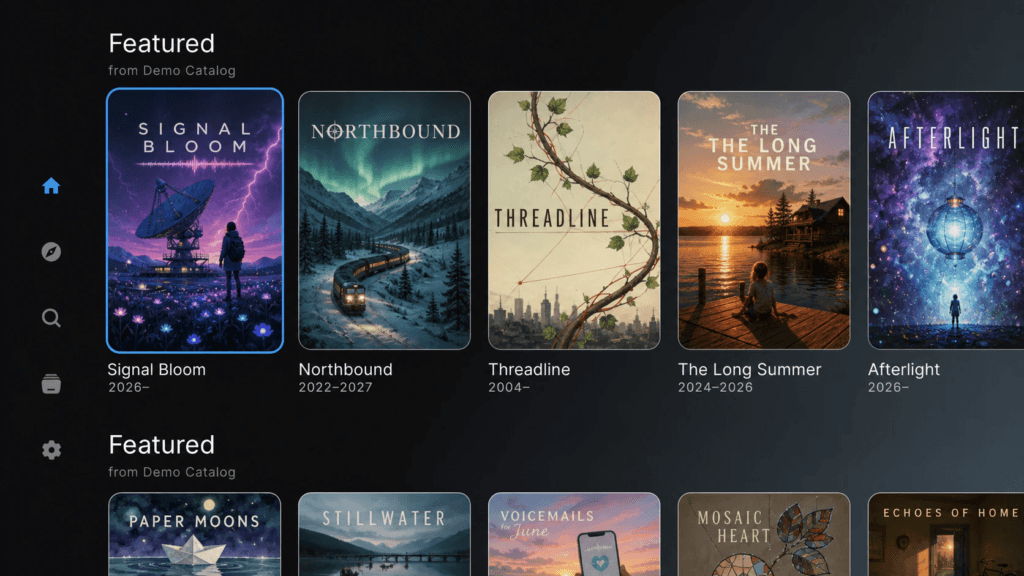
Open any movie or episode and check the source list. You should see AIOStreams results labeled with quality and your debrid service.
That’s it. AIOStreams is now installed in Nuvio. If you use more than one Nuvio profile, repeat step 8 onward on each profile, unless that profile is set to Use Primary Addons.
How to Add AIOStreams to Nuvio From Your Phone (QR Code)
Typing a long manifest URL with a Fire TV remote is nobody’s idea of fun. Nuvio TV has a built-in way around it:
- In Nuvio on your TV, open Addons and select Manage from phone.
- Scan the QR code with your phone’s camera.
- On the page that opens on your phone, paste your AIOStreams manifest URL into Add addon by URL and add it.
- Back on the TV, Nuvio shows Confirm addon & catalog changes with AIOStreams listed under Added. Select Confirm.
How to Add AIOStreams to Nuvio on Android or iPhone
If you use Nuvio Mobile, you can install AIOStreams right from the app:
- Open Nuvio and go to Settings, then Content & Discovery, then Addons.
- Paste your manifest URL into the Addon URL field.
- Tap Install Addon. Nuvio checks the manifest, then shows Addon Installed.
If your phone and TV are signed in to the same Nuvio account and profile, Nuvio Sync pushes AIOStreams to your TV too. Sync isn’t instant, so reopen Nuvio on the TV or wait about a minute.
AIOStreams Real-Debrid and TorBox Setup in Nuvio
Your debrid key goes into AIOStreams, and Nuvio never asks for it. Here’s where each key goes.
Real-Debrid: Copy your API key from the Real-Debrid API token page while signed in, then paste it on the Credentials screen during setup (step 4), or later under the Services section of your configuration.
TorBox: Copy your API key from your TorBox account settings and paste it the same way. TorBox also appears separately under Usenet in the services list, so if your TorBox plan includes Usenet, select it there too for extra results. Our TorBox guide covers the plans.
Using both: You can add more than one debrid service. AIOStreams checks each one and merges the results, which helps when a title isn’t cached on your main service.
After changing services on an existing configuration, click Save on the Save & Install page. You don’t need to reinstall the addon in Nuvio.
Can You Use the AIOStreams Nuvio Addon Without Debrid?
Yes, but not on ElfHosted’s public instance. ElfHosted disables P2P and HTTP streams, so without a debrid key it has nothing to show you.
To use AIOStreams for free, pick a community instance like Yeb’s or Midnight’s, choose the Tamtaro Complete SEL Setup template, and skip the services step. It will pull torrent (P2P) streams from addons like Torrentio instead.
Keep in mind that P2P streams are slower to start, less reliable for older titles, and share your IP address with other peers while you watch. If you go this route, use a VPN. A cheap debrid plan is still the better experience for most people.
How to Change Your AIOStreams Nuvio Settings Without Reinstalling
You don’t need a new URL every time you tweak something in the AIOStreams Nuvio addon. To edit your configuration:
- Open the same instance you used before and sign in with your UUID and password.
- Change what you want (services, filters, sorting).
- Go to Save & Install and click Save.
Most changes apply right away. In Nuvio TV, open Addons and select Refresh Addons to pull the latest version. You only need to reinstall with a new URL if you switch to a different instance or create a brand new configuration.
Lost your UUID or password? The quickest fix is to create a new configuration and install its URL in Nuvio, then remove the old AIOStreams entry.
AIOStreams Not Working in Nuvio? Troubleshooting
Most AIOStreams problems in Nuvio come down to one of four things: the instance, your debrid service, your filters, or the Nuvio profile you’re on. Find the message or symptom you’re seeing below.
AIOStreams No Streams Found in Nuvio
First, confirm your debrid key is saved in Services. If you’re on ElfHosted without debrid, that’s the cause (see the section above). Otherwise, loosen your filters, since a strict resolution or language filter can hide every result.
AIOStreams Real-Debrid Only Showing 1 or 2 Results
This one usually isn’t AIOStreams. Real-Debrid switched on a keyword-based content filter in May 2026, and a lot of popular titles lost most of their cached files. AIOStreams can only show what your debrid service still has, so a short list is now normal for many titles on Real-Debrid.
Two things help:
- Add a second debrid service, such as TorBox, in Services. AIOStreams searches every service you add with the same configuration. If you’re choosing a debrid service today, how much content it still has cached matters more than any AIOStreams setting.
- Check the Global Limit and your resolution filters. A low limit or a 4K-only filter makes a short list even shorter.
Our Real-Debrid content filter guide explains what changed.
Nuvio “Playback Isn’t Available for This Title With Your Current Setup”
Nuvio shows this when none of the stream addons on your current profile can handle that title. It checks before it searches, so it isn’t a server problem.
Work through these in order:
- Open Addons on the profile you’re using and confirm AIOStreams is there and turned on. Addons installed on another profile don’t count unless this profile uses the primary profile’s addons.
- If AIOStreams is missing, install it again with your manifest URL.
- If the message only appears on some titles, the catalog you opened them from may use a different ID type than your stream addons accept. Try the same title from search or from another catalog row.
Nuvio Buffering With AIOStreams: TorBox and 4K Fix
If a stream buffers every few seconds, the problem is usually between your device and your debrid service’s servers. AIOStreams only hands Nuvio the link.
On TorBox, run TorBox’s speed test on the same device and network, then set CDN Selection in your TorBox Integration Settings to the one it recommends, or to Auto. Start the stream again afterward, because a link you already opened keeps its old CDN.
In Nuvio on Android TV or Firestick, open Settings, then Playback, then Buffer & Network, and try these:
- Turn on Parallel Connections (called Custom Network in some versions). Nuvio’s own description says to use it when you’re buffering even though your internet is fast enough.
- Turn on Enable HTTP/2.
- Turn on ExoPlayer Native Memory, if your device supports it.
If 4K remuxes still stutter, set Internal Engine to Libmpv, or set Player to External and use VLC. Big 4K files are also where a weak Wi-Fi signal shows up first, so try a wired connection before you blame the app.
AIOStreams Slow Loading or Timeout
If Nuvio says AIOStreams “took too long to respond,” or streams take ages to appear, the instance is busy or rate-limited. Wait a few minutes and try again, or move to a less crowded Stable instance. Removing addons you don’t use inside AIOStreams can also speed up results.
AIOStreams Wrong Language or Language Filter Not Working
AIOStreams handles language under Filters, then Language. Preferred Languages moves a language to the top of your list. Required Languages removes every stream that doesn’t match.
If you set a language and still get the wrong audio, the stream probably doesn’t say which language it has. AIOStreams reads language from the file name or media info, and many releases don’t list it.
If a language shows up for some episodes but not others, no source has it for the missing ones. A filter can’t add streams, so add a source that carries that language. PenguPlay, for example, lists 19 audio languages.
AIOStreams Not Showing on Other Nuvio Profiles
Each Nuvio profile has its own addon list. On a new profile, either install AIOStreams again with the same manifest URL, or turn on Use primary profile’s addons so the profile shares Profile 1’s addons. Every profile can use the same AIOStreams configuration, so nobody has to enter debrid keys or rebuild filters for their own profile.
If a profile says “Using primary profile’s addons and can’t be changed,” it’s already sharing Profile 1’s addons. Switch to Profile 1 to install AIOStreams, or turn off primary addon sharing for that profile.
AIOStreams Not Showing Torrentio
ElfHosted’s public instance turns Torrentio off and blocks P2P streams completely, so Torrentio won’t appear there no matter how you set it up. Use a community instance like Yeb’s or Midnight’s if you want it. If you have debrid, you can skip Torrentio, since Comet, MediaFusion, and StremThru Torz cover the same torrents.
AIOStreams Failed to Fetch Manifest
You’ll see this when you save your configuration in AIOStreams. One of the addons inside your configuration is down. Disable it on the Addons page and save again.
Is AIOStreams Down? “Unable to Load Manifest”
If Nuvio says “Unable to load manifest,” the instance is down or the URL is incomplete. Open the manifest URL in a browser to test it, and check the AIOStreams status page for your instance. If your instance stays down, you can rebuild the same setup on another one, but you’ll get a new manifest URL to install in Nuvio.
AIOStreams No Matching File Found
This error comes from the debrid side of AIOStreams. The download it found doesn’t contain a file that matches the movie or episode you picked, which happens a lot with season packs. Go back and choose a different stream.
Nuvio “The Stream Source Is Blocked or Restricted”
Nuvio’s full message ends with “Try a different source,” and that’s the fix. The link was refused when Nuvio tried to play it, so pick another stream from the list. If every stream fails this way, check that your debrid subscription is still active.
AIOStreams “Addon URL Must Start With http or https”
Nuvio couldn’t read what you pasted. Copy the manifest URL again with the Copy URL button and paste the whole thing, including the https:// at the start.
AIOStreams “That Addon Is Already Installed”
AIOStreams is already on this profile. If you changed your configuration, use Refresh Addons instead of installing it again.
AIOStreams Installed on Your Phone but Not Showing on Your TV
Make sure both devices use the same Nuvio account and profile, then reopen Nuvio on the TV.
Is AIOStreams Legal?
Determining the legality of AIOStreams is challenging without knowing if the addons and sources it pulls from have the proper licensing. Kodi Tips does not have the ability to confirm the legal status of these addons.
Plus, legality rules differ depending on what country you live in.
Copyright Concerns with Nuvio Addons
At first glance, the addon appears to link to copyrighted works without the necessary consent, which raises the concern about its legality.
Public Domain Titles
Users can access titles in the public domain, which are not subject to copyright laws. This allows free download, streaming, and sharing without legal issues.
User Responsibility
You, as the end user, bear responsibility for all content accessed through Nuvio addons, making it crucial that you understand what is legal to view.
Legal Streaming Options
For those seeking legal and verified streaming options, check our list of legal Kodi addons with 100% legal content.
AIOStreams Nuvio FAQ
How Do You Install AIOStreams in Nuvio?
Build your configuration on an AIOStreams instance in a web browser, click Install, then Copy URL. In Nuvio, open Addons, select Install addon, paste the URL, and select Install. The full steps with screenshots are above.
Where Do I Get the AIOStreams Manifest URL for Nuvio?
After you create your configuration on the Save & Install page, click Install and then Copy URL. That link is your manifest URL. It’s unique to your configuration, so don’t share it publicly.
Is AIOStreams Free?
Yes. AIOStreams is free, open-source software, and the public instances are free to use. You’ll get far better results with a paid debrid service like Real-Debrid or TorBox, though.
Does AIOStreams Include Torrentio?
It can, but not on ElfHosted’s public instance, which disables Torrentio. Community instances like Yeb’s and Midnight’s allow it. If you use debrid, you don’t really need Torrentio, since Comet, MediaFusion, and StremThru Torz cover the same ground.
Do I Need AIOMetadata With AIOStreams?
AIOStreams only provides streams. AIOMetadata (or Nuvio’s built-in catalog) provides the movie and TV rows on your home screen and the details pages. Most people run both.
Should I Use a VPN With AIOStreams in Nuvio?
Yes. A VPN hides your streaming activity from your internet provider and matters most if you use P2P streams without debrid. We recommend NordVPN.
Why Does AIOStreams Say Provider Authentication Failed?
That message comes from AIOStreams’ Usenet support. Your Usenet provider rejected the username or password saved in your AIOStreams configuration. Re-enter your Usenet login, save, and try again.
Disclaimer
We have no control over and do not host or upload any video, films, media file, or live streams. KodiTips is not responsible for the accuracy, compliance, copyright, legality, decency, or any other aspect of the content streamed from your device. If you have any legal issues please contact the appropriate media file owners or host sites.