
In this tutorial guide, I’ll show you exactly how to install the PenguPlay Nuvio addon on your Firestick, Android TV, or Google TV device, plus how to add it from your phone and which settings to change first.
PenguPlay (also written Pengu Play) is a free HTTP stream addon that pulls direct links from online sources. It doesn’t use torrents and doesn’t need a debrid service, which makes it one of the most popular free addons for Nuvio.
You’ll sign in on the PenguPlay website to get your personal addon URL, then add that URL to Nuvio. I’ll also cover the access token route if you don’t want to use Google, the best settings for anime and regional content, and what to do when PenguPlay stops finding streams.
PenguPlay Nuvio Addon Quick Facts
| Addon Name | PenguPlay |
| Addon Type | HTTP stream addon (plus subtitles and optional Live TV) |
| Current Version | 1.4.0 |
| Cost | Free |
| Debrid Required | No |
| Sign-In | Google account or a PenguPlay access token |
| Content | Movies, TV series, anime, Asian drama, regional titles |
| Sources | 16 selectable providers (6 enabled by default) |
| Works With | Nuvio TV (Firestick, Android TV, Google TV), Nuvio Mobile, and Stremio |
What Is the PenguPlay Nuvio Addon?
Most Nuvio stream addons fall into two groups. Torrent addons like Torrentio find torrents and stream them peer to peer, and debrid addons like AIOStreams hand those torrents to a paid service such as Real-Debrid or TorBox to play from a fast server. PenguPlay is a third type: an HTTP addon. It finds video files already hosted on streaming websites and hands Nuvio a direct link.
That’s why the PenguPlay Nuvio addon works without a debrid account, and why it’s a good first addon if you want free streams in Nuvio. It also means there’s no torrent swarm involved, since Nuvio just plays a web link.
Unlike most addons, PenguPlay doesn’t have one public addon URL. You sign in on its website, and it creates a personal install URL tied to your account. That’s the URL you add to Nuvio.
PenguPlay Nuvio Addon Features You Should Know About
16 Selectable Sources, Including Anime and Regional Sites
PenguPlay lets you choose which of its 16 providers to search. Six are on by default (4KHDHub, MovieBox, MoviesDrives, VAPlayer, 2Peckle, and HDHub4u), and you can add others like Miruro and Anikoto for anime, KissKH for Asian drama, or VegaMovies for more Bollywood and regional titles. Because each source is a separate website, you can turn off one that misbehaves without losing the rest.
4K to 360p Quality Filters and 19 Audio Languages
You can hide any resolution from 4K down to 360p, and filter by audio language. PenguPlay lists 19 of them, including English, Hindi, Tamil, Telugu, Korean, Japanese, Spanish, and French. If you only watch in English, unchecking the others trims a long list of dubbed versions from Nuvio’s source screen.
Built-In Subtitles and Optional Live TV
PenguPlay also supplies subtitles for movies and shows, so you may not need a separate subtitle addon. There’s an optional Live TV source as well, which is off by default and adds live channels to Nuvio when you turn it on.
What We Like and What We Don’t Like About PenguPlay
What We Like
- Completely free, with no debrid account needed
- Direct HTTP links, so no torrents or P2P
- 4K sources and a lot of anime and regional content
- Built-in subtitles and an optional Live TV source
- Lets you pick exactly which sources to search
What We Don’t Like
- You have to sign in before you get an addon URL
- HTTP sources break or go offline more often than debrid sources
- Turning on too many sources makes results load slower
What You Need Before You Install the PenguPlay Nuvio Addon
Before you start, have these ready:
- Nuvio installed on your device. If you haven’t done that yet, follow our Nuvio install guide for Firestick and Android TV.
- A Google account or a PenguPlay access token. Google is instant. If you’d rather not use Google, see the access token section below.
- A phone or computer with a web browser. You’ll sign in and set up PenguPlay there, not on your TV.
Is the PenguPlay Nuvio Addon Safe to Use?
PenguPlay says its Google sign-in stores only your anonymous Google account ID, not your email or password. The addon itself just returns links, so the bigger question is the sources. PenguPlay pulls from third-party streaming websites run by unknown operators, and those sites can see your IP address when Nuvio plays a stream.
You’ll also see an Emulate VPN option in PenguPlay’s settings. It spoofs the client IP address PenguPlay reports to its sources, but it isn’t a VPN and it doesn’t hide your connection from your internet provider.
A VPN will give you an anonymous connection while streaming through Nuvio addons. Click here to view the #1 VPN for streaming.
Learn how to install and configure your VPN here.
How Do You Stay Protected While Using Nuvio?
Sign up for a premium VPN and access the internet unrestricted. We offer exclusive discounts for IPVanish and NordVPN, the highest respected VPNs in the streaming community. Both of these VPNs have some great features for users:
- Apps for Android, iOS, Mac, Linux & more
- Zero Logs
- Unlimited bandwidth
- Tier 1 hardware (no speed slowdown)
- Access to hundreds of VPN servers


How to Install the PenguPlay Nuvio Addon on Firestick or Android TV
These steps work on Firestick, Fire TV, Android TV, and Google TV. Steps 1 to 6 happen in a web browser on your phone or computer. Steps 7 to 11 happen in Nuvio on your TV.
This guide will show you how to install the PenguPlay Nuvio addon on Firestick, Android TV, or Google TV.
Total Time: 5 minutes
Open the PenguPlay Website
On your phone or computer, open a web browser and go to pengu.uk.
Sign In to PenguPlay
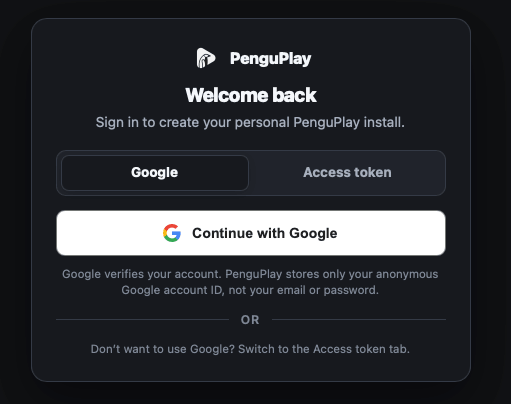
Click Continue with Google and pick your account. If you don’t want to use Google, switch to the Access token tab and paste your token instead (see the section below).
Choose Your Sources
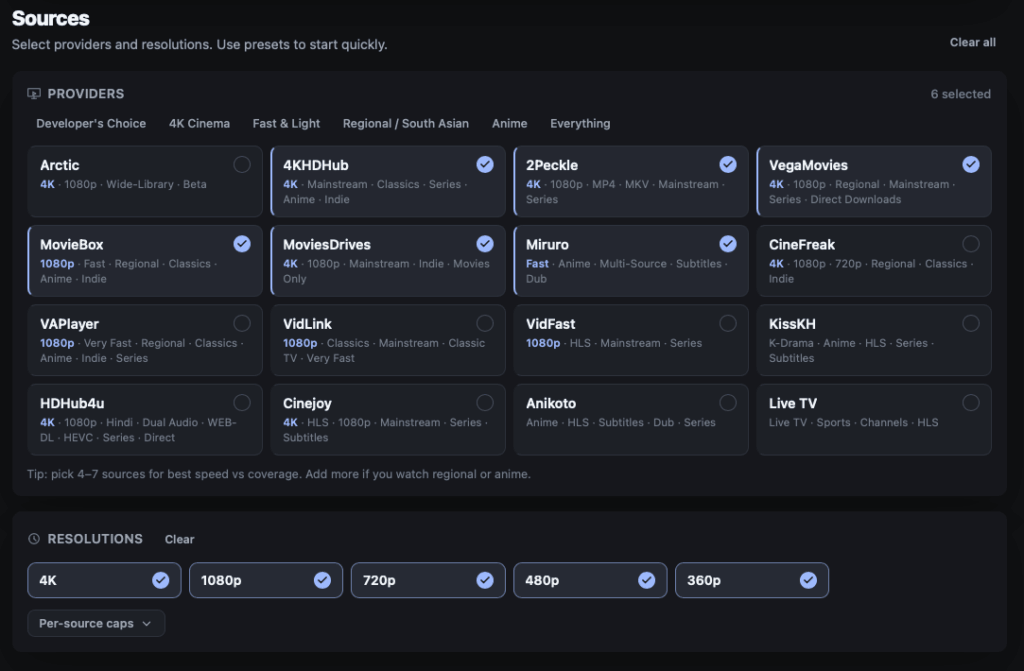
On the Sources tab, keep the default providers checked or pick your own. PenguPlay recommends 4 to 7 sources for the best balance of speed and coverage.
Set Your Quality and Language Filters
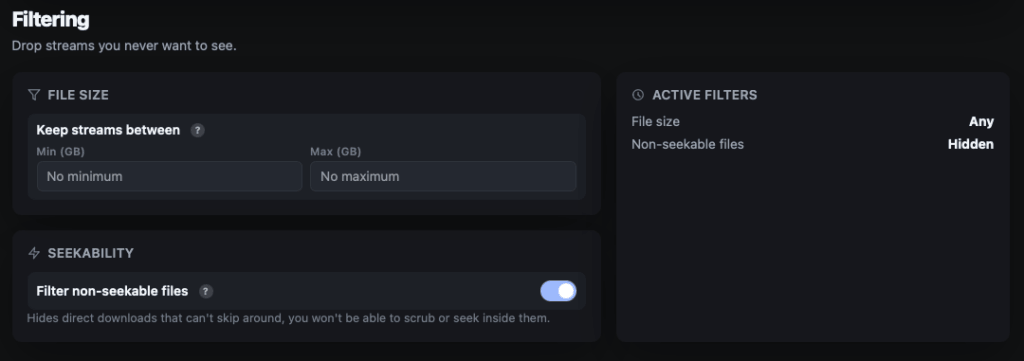
On the Filtering tab, uncheck any resolutions or audio languages you don’t want. If you’re not sure, leave everything checked for now.
Click Install PenguPlay
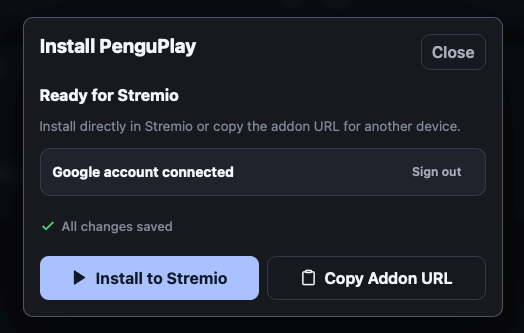
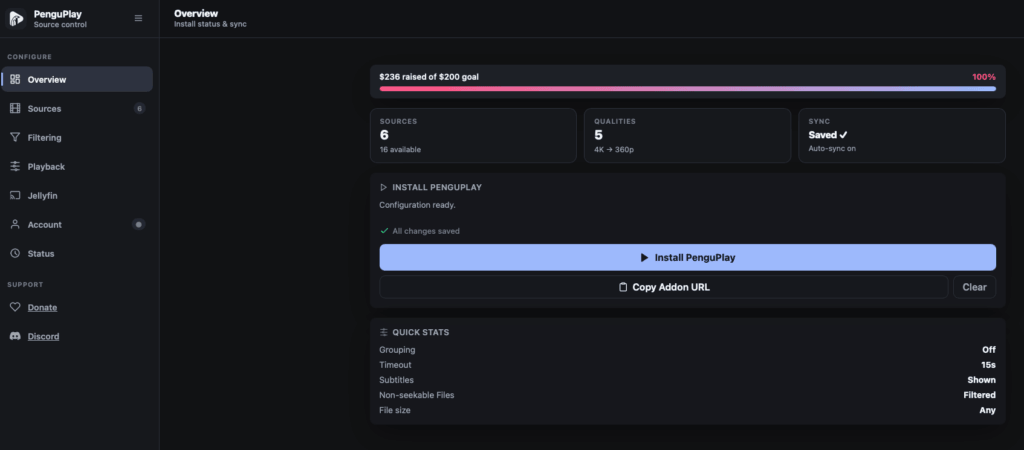
Click Install PenguPlay. PenguPlay saves your setup to your account and creates your personal addon URL. Click Copy Addon URL. This is your personal PenguPlay Nuvio addon URL, so keep it private.
Open Addons in Nuvio
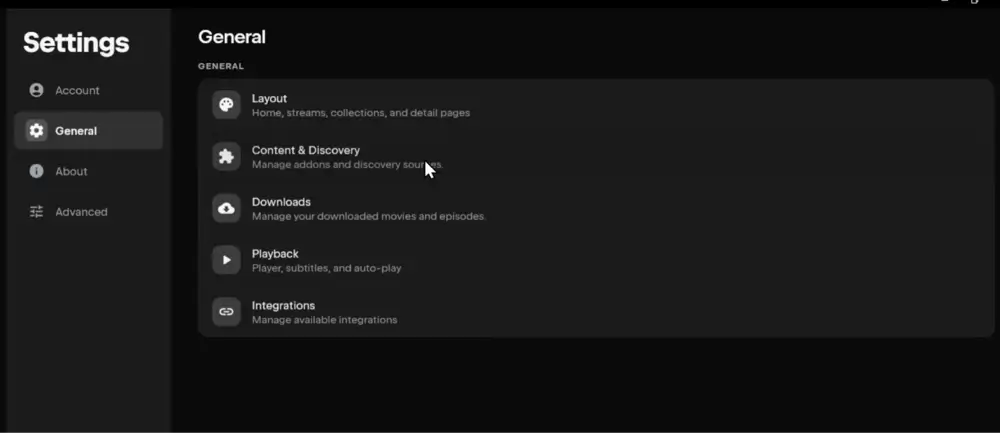
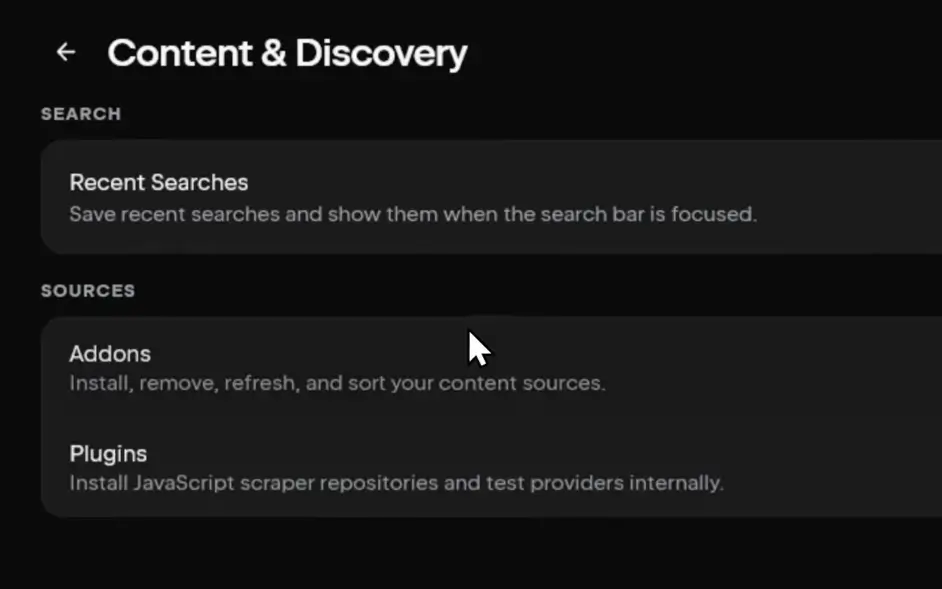
Launch Nuvio on your TV and open Addons from the side menu. You can also get there through Settings, then Content & Discovery, then Addons.
Select Install Addon
Select the Install addon field at the top of the Addons screen.
Paste the URL and Click Install
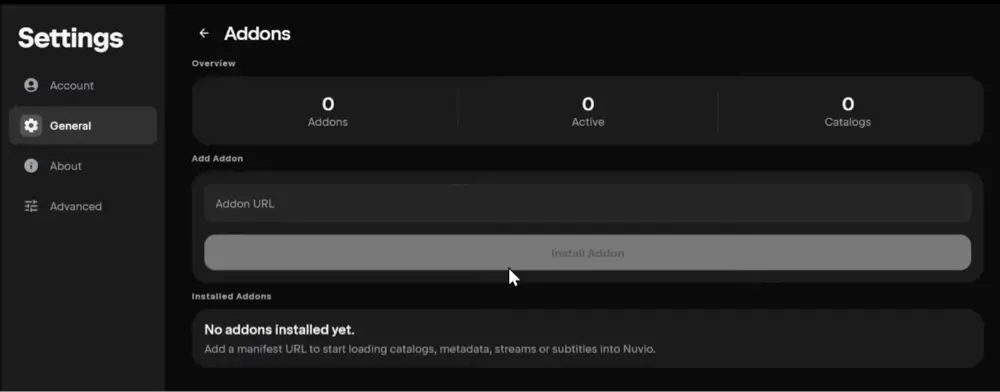
Enter your PenguPlay addon URL and select Install. Typing it with a remote is slow, so the QR code method below is easier on a Firestick.
Confirm PenguPlay Is Installed
Nuvio shows a short Installed confirmation, and PenguPlay appears in your Installed list.
Test a Movie or Episode
Open any movie or episode and check the source list. You should see PenguPlay results labeled with their quality and source.
That’s it. The PenguPlay Nuvio addon is now installed. If you use more than one Nuvio profile, repeat step 7 onward on each profile, unless that profile is set to Use Primary Addons.
How to Add PenguPlay to Nuvio From Your Phone (QR Code)
Typing a long addon URL with a Fire TV remote is slow, and Nuvio TV has a built-in way around it:
- In Nuvio on your TV, open Addons and select Manage from phone.
- Scan the QR code with your phone’s camera.
- On the page that opens on your phone, paste your PenguPlay addon URL into Add addon by URL and add it.
- Back on the TV, Nuvio shows Confirm addon & catalog changes with PenguPlay listed under Added. Select Confirm.
How to Add PenguPlay to Nuvio on Android or iPhone
If you use Nuvio Mobile, you can install PenguPlay right from the app:
- Open Nuvio and go to Settings, then Content & Discovery, then Addons.
- Paste your PenguPlay addon URL into the Addon URL field.
- Tap Install Addon. Nuvio checks the manifest, then shows Addon Installed.
If your phone and TV are signed in to the same Nuvio account and profile, Nuvio Sync pushes PenguPlay to your TV too. Reopen Nuvio on the TV or wait about a minute.
How to Get a PenguPlay Access Token Without Google
If you don’t have a Google account or don’t want to link one, PenguPlay gives out personal access tokens instead:
- Request a token from the PenguPlay Telegram bot, or join the PenguPlay Discord server and type /token.
- On pengu.uk, switch to the Access token tab.
- Paste your token and click Continue, then follow the install steps above from step 3.
Token requests through Telegram are reviewed by hand, so it can take up to about a day to get one. Google sign-in is instant.
If PenguPlay tells you the token is invalid, no longer active, or has been revoked, request a new one. And if Nuvio suddenly stops getting PenguPlay results with an authentication message, sign in on pengu.uk again, copy a fresh addon URL, and reinstall it in Nuvio.
Best PenguPlay Nuvio Addon Settings (Sources, Quality & Anime)
The defaults work well, but a few changes make the PenguPlay Nuvio addon faster and more useful:
- Keep it to 4 to 7 sources. Every source is another website PenguPlay has to check before Nuvio shows results, so more isn’t always better. PenguPlay’s own tip is to add more only for regional or anime content.
- For anime, add Miruro and Anikoto. Both are anime sites, and they’re off by default.
- For Korean and other Asian dramas, add KissKH.
- Uncheck audio languages you never use. This cuts the number of dubbed duplicates in your source list.
- Turn on Hide non-seekable streams if skipping ahead doesn’t work. Some direct links can’t be fast-forwarded, and this option hides them.
- Set a minimum file size if you get low-quality results. The size filter hides streams outside the range you set. Streams without a known size still show.
- Check Provider health. PenguPlay’s configure page has a live Provider health view, so you can see which sources are down before blaming your settings.
How to Change Your PenguPlay Nuvio Settings Without Reinstalling
PenguPlay saves your settings to your account, so you usually don’t need a new URL every time you change something. To edit your setup:
- Go back to pengu.uk and sign in the same way you did before.
- Change your sources or filters and click Save.
- In Nuvio TV, open Addons and select Refresh Addons to pull the latest version.
If your changes still don’t show up, copy the addon URL again and reinstall it in Nuvio, then remove the old PenguPlay entry.
PenguPlay Nuvio Addon Not Working? Troubleshooting
Is PenguPlay down?
Check the Provider health view on pengu.uk first. If one source is down, uncheck it and save. If the whole site isn’t loading, wait and try again later, or ask in the PenguPlay Discord.
No PenguPlay streams for a title
HTTP sources don’t have everything, especially brand-new releases or older, less popular titles. Try enabling a couple more sources, and check that your resolution and language filters aren’t hiding every result.
PenguPlay results load slowly
You probably have too many sources turned on. Cut back to 4 to 7 and save.
Streams buffer or won’t start
PenguPlay’s developer recommends switching your device to Cloudflare DNS or using Cloudflare’s WARP app, since some internet providers block or slow down the source sites.
You can’t skip ahead in a stream
Some direct links aren’t seekable. Turn on Hide non-seekable streams in PenguPlay’s settings.
“Unable to load manifest” in Nuvio
The URL is incomplete or your sign-in expired. Copy the addon URL again from pengu.uk and reinstall it.
“Addon URL must start with http or https”
Nuvio couldn’t read what you pasted. Use the Copy Addon URL button and paste the whole thing, including the https:// at the start.
“Using primary profile’s addons and can’t be changed”
This Nuvio profile shares Profile 1’s addons. Switch to Profile 1 to install PenguPlay, or turn off primary addon sharing for that profile.
PenguPlay vs AIOStreams and TorBox: Do You Still Need Debrid?
PenguPlay and a debrid setup solve the same problem in different ways. PenguPlay is free and starts working the minute you sign in. A debrid service like TorBox or Real-Debrid costs a few dollars a month, but it plays cached torrents from its own fast servers, which usually means more results for new releases and fewer dead links.
My take: start with PenguPlay if you’re new to Nuvio or don’t want another subscription. If you find yourself hitting missing titles or broken links often, add a debrid service and set up AIOStreams in Nuvio. You can run both at the same time, and Nuvio will show PenguPlay and AIOStreams results side by side. Our Real-Debrid alternatives guide compares the debrid options.
Is PenguPlay Legal?
Determining the legality of PenguPlay is challenging without knowing if the sources it pulls from have the proper licensing. Kodi Tips does not have the ability to confirm the legal status of these addons.
Plus, legality rules differ depending on what country you live in.
Copyright Concerns with Nuvio Addons
At first glance, the addon appears to link to copyrighted works without the necessary consent, which raises the concern about its legality.
Public Domain Titles
Users can access titles in the public domain, which are not subject to copyright laws. This allows free download, streaming, and sharing without legal issues.
User Responsibility
You, as the end user, bear responsibility for all content accessed through Nuvio addons, making it crucial that you understand what is legal to view.
Legal Streaming Options
For those seeking legal and verified streaming options, check our list of legal Kodi addons with 100% legal content.
PenguPlay Nuvio Addon FAQ
How Do You Install the PenguPlay Nuvio Addon?
Sign in at pengu.uk with Google or an access token, choose your sources, click Install PenguPlay, then Copy Addon URL. In Nuvio, open Addons, select Install addon, paste the URL, and select Install.
Is PenguPlay Free?
Yes. PenguPlay is free and doesn’t need a debrid service. There’s an optional donor token, but it only hides announcement banners. Nothing is locked behind it.
Is PenguPlay a Nuvio Plugin or an Addon?
PenguPlay is an addon. Add it in Nuvio’s Addons screen with your addon URL, not in the Plugins section, which is for scraper repositories.
Does PenguPlay Work on Stremio?
Yes. The same personal URL works in Stremio, and PenguPlay’s install panel also has an Install to Stremio button.
Does PenguPlay Have Anime?
Yes. Turn on the Miruro and Anikoto sources in PenguPlay’s settings for anime. They’re off by default.
What Are the Best PenguPlay Alternatives?
If you want to stay free, torrent addons like Torrentio work without debrid but stream peer to peer, so use a VPN. If you can pay a few dollars a month, AIOStreams with Real-Debrid or TorBox gives more reliable results.
Should I Use a VPN With the PenguPlay Nuvio Addon?
Yes. PenguPlay’s sources are third-party websites that can see your IP address, and a VPN keeps your streaming private from your internet provider. We recommend NordVPN.
Disclaimer
We have no control over and do not host or upload any video, films, media file, or live streams. KodiTips is not responsible for the accuracy, compliance, copyright, legality, decency, or any other aspect of the content streamed from your device. If you have any legal issues please contact the appropriate media file owners or host sites.