
In this tutorial guide, I’ll show you exactly how to install the AIOMetadata Nuvio addon on your Firestick, Android TV, or Google TV device, plus how to pick your home screen rows and build Nuvio collections with it.
AIOMetadata is a free catalog and metadata addon. It fills your Nuvio home screen with movie, TV, and anime rows, and supplies the posters, descriptions, and episode lists for every title, using TMDB, TVDB, MyAnimeList, TVmaze, IMDb, and Fanart.tv.
It’s the other half of a working Nuvio setup. Stream addons like AIOStreams, Torrentio, and PenguPlay find the links, but they don’t add anything to your home screen. AIOMetadata does. I’ll also cover which AIOMetadata instance to use, how to connect Trakt and MDBList, the anime settings, and what to do when your rows stop loading.
AIOMetadata Nuvio Addon Quick Facts
| Addon Name | AIOMetadata |
| Addon Type | Catalog and metadata addon (no streams) |
| Current Version | 3.1.0 |
| Cost | Free |
| Data Sources | TMDB, TVDB, MyAnimeList, TVmaze, IMDb, Fanart.tv |
| Built-In Catalogs | Up to 35, set up with a Minimal, Balanced, or Everything lineup |
| API Keys Needed | None on the ElfHosted instance (MDBList key optional) |
| Works With | Nuvio TV (Firestick, Android TV, Google TV), Nuvio Mobile, and Stremio |
What Is the AIOMetadata Nuvio Addon?

AIOMetadata does two jobs in Nuvio. First, it adds catalogs, which are the rows on your home screen like TMDB Popular, TMDB Trending, or MAL Airing Now. Second, it supplies metadata, meaning the titles, posters, backdrops, descriptions, cast, and episode lists you see when you open something.
What it doesn’t do is find streams. The AIOMetadata Nuvio addon will never show a single playable link, so you pair it with a stream addon. Our guides to AIOStreams, Torrentio, and PenguPlay cover the most popular ones.
The payoff is accuracy. When a stream addon searches for an episode, it uses the ID that came from your metadata addon. Better metadata means fewer wrong episodes and fewer “no streams” results for shows with confusing season numbering.
AIOMetadata Nuvio Addon Features You Should Know About
AIOMetadata Catalogs From TMDB, TVDB, MyAnimeList and TVmaze
AIOMetadata builds its rows from four catalog sources: TMDB (Popular, Trending, Top Rated, Airing Today, By Year, By Language), MyAnimeList (Airing Now, Seasons, Genres, Top Anime), TVDB (Trending, Genres, Collections), and TVmaze (Daily Schedule). You can also add a movies row and a series row for each streaming service you subscribe to, so your home screen can mirror what’s on Netflix or Disney+.
AIOMetadata Setup Wizard: Minimal, Balanced or Everything
The current version opens with a setup wizard that asks what you watch (Movies and TV, Movies TV and anime, or Mostly anime) and how many catalogs you want. Minimal turns on 10, Balanced turns on 23, and Everything turns on all 35. That replaces the old method of downloading someone’s config file and importing it, although Import a setup is still there if a friend shares theirs.
AIOMetadata Nuvio Collection Builder
This one is specific to Nuvio. When you tell AIOMetadata you watch in Nuvio, it offers a collection builder that exports your layout as Nuvio collections. Building folders on a computer and importing them is a lot faster than assembling them one button press at a time with a TV remote.
What We Like and What We Don’t Like About AIOMetadata
What We Like
- Fills an empty Nuvio home screen in a few minutes
- No API keys needed on the ElfHosted instance
- Exports layouts straight to Nuvio collections
- Strong anime handling with MyAnimeList and Kitsu
- Trakt and MDBList integration for watchlists and Up Next rows
What We Don’t Like
- The public instance shares its cache with everyone, so it can be slower at busy times
- Turning on Everything floods the home screen with rows
- You have to create a password before you get an install link
What You Need Before You Install the AIOMetadata Nuvio Addon
Before you start, have these ready:
- Nuvio installed on your device. If you haven’t done that yet, follow our Nuvio install guide for Firestick and Android TV.
- A phone or computer with a web browser. You’ll set up AIOMetadata there, not on your TV.
- An MDBList API key (optional). It’s free for up to 1,000 calls a day and unlocks curated lists and MDBList watchlists.
Best AIOMetadata Instance for Nuvio
Like AIOStreams, AIOMetadata is software that different people host, and each copy is called an instance. Your configuration lives on the instance you save it to. All four of these were running version 3.1.0 when I checked:
| Instance | URL | Notes |
|---|---|---|
| ElfHosted | aiometadata.elfhosted.com | Sponsored public instance, metadata keys included |
| Viren’s | aiometadata.viren070.me | Run by the AIOStreams developer |
| Midnight’s | aiometadatafortheweebs.midnightignite.me | Community instance |
| Kuu’s | aiometadata.stremio.ru | Community instance |
ElfHosted is the easiest pick because it covers the TMDB and TVDB keys for you. On other instances, the wizard may ask for your own free keys. If an instance stops loading, it’s usually down or busy, not broken for good, so give it a while or save a backup of your setup and move to another one. People who want their own cache and extra features like AI search can pay for a private instance or self-host.
Is the AIOMetadata Nuvio Addon Safe to Use?
AIOMetadata only handles titles, artwork, and catalog lists. It never finds or plays video, so it carries none of the risks that come with stream addons. Any API keys you add, like MDBList or Trakt, are stored in your own password-protected configuration on the instance you choose.
The stream addons you pair it with are a different story. They pull links from third-party sources, and that’s where a VPN earns its place. Click here to view the #1 VPN for streaming.
Learn how to install and configure your VPN here.
How Do You Stay Protected While Using Nuvio?
Sign up for a premium VPN and access the internet unrestricted. We offer exclusive discounts for IPVanish and NordVPN, the highest respected VPNs in the streaming community. Both of these VPNs have some great features for users:
- Apps for Android, iOS, Mac, Linux & more
- Zero Logs
- Unlimited bandwidth
- Tier 1 hardware (no speed slowdown)
- Access to hundreds of VPN servers


How to Install the AIOMetadata Nuvio Addon on Firestick or Android TV
These steps work on Firestick, Fire TV, Android TV, and Google TV. Steps 1 to 5 happen in a web browser on your phone or computer. Steps 6 to 9 happen in Nuvio on your TV.
This guide will show you how to install the AIOMetadata Nuvio addon on Firestick, Android TV, or Google TV.
Total Time: 5 minutes
Open the AIOMetadata Configure Page
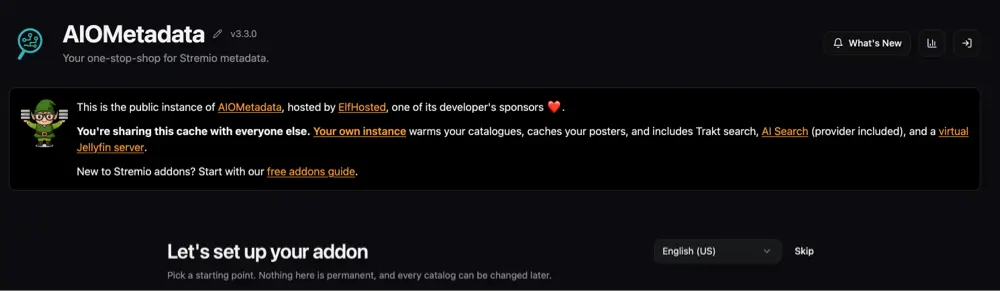
On your phone or computer, open a web browser and go to aiometadata.elfhosted.com/configure (or another instance from the table above).
Tell AIOMetadata What You Watch
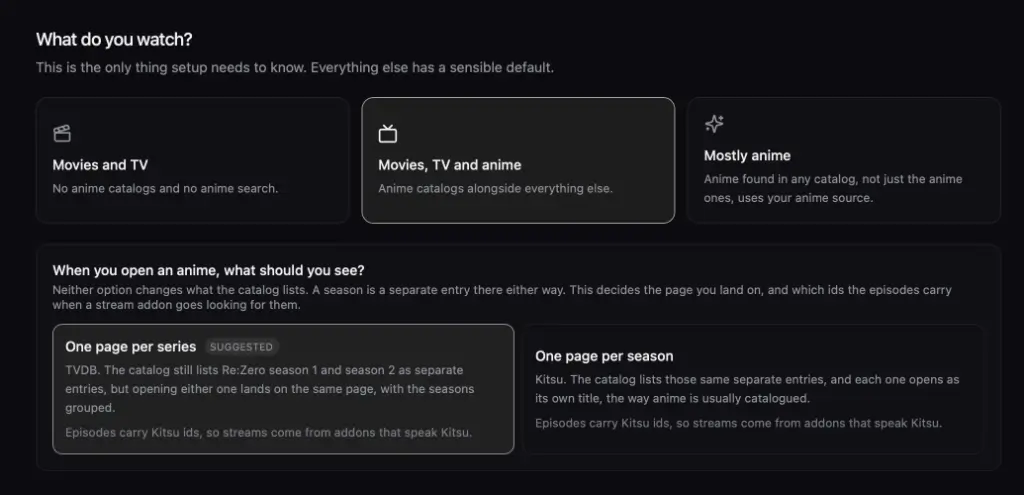
Under What do you watch?, choose Movies and TV, Movies TV and anime, or Mostly anime. If you picked an anime option, choose One page per series (suggested) or One page per season.
[Screenshot: the What do you watch? options]Pick a Starting Lineup and Apply It
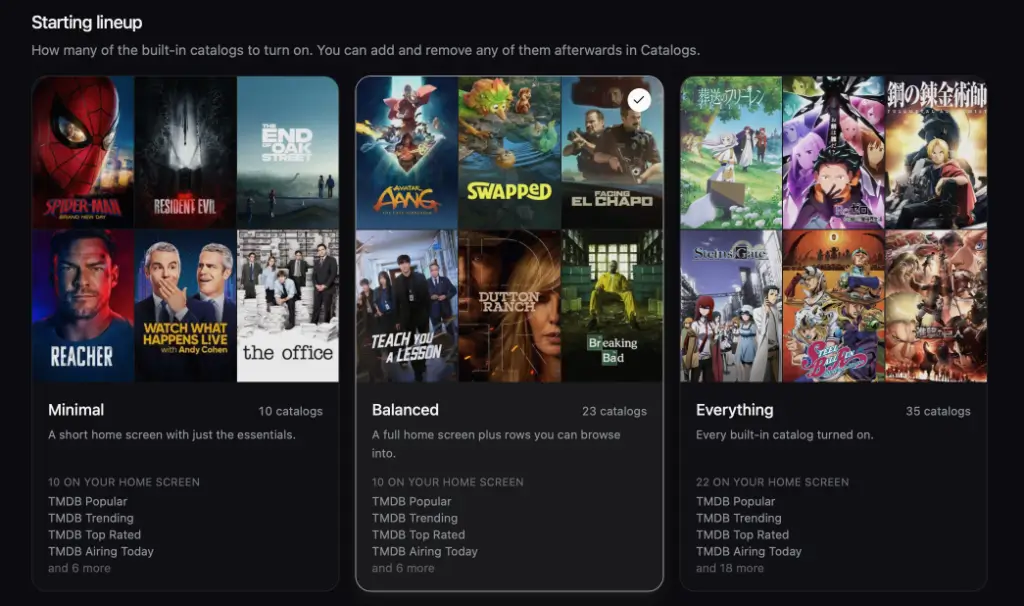
Choose Minimal (10 catalogs), Balanced (23), or Everything (35), then click Preview and apply. Switch off any rows you don’t want and click Apply.
[Screenshot: the Starting lineup cards with Balanced selected]Choose Nuvio and Save
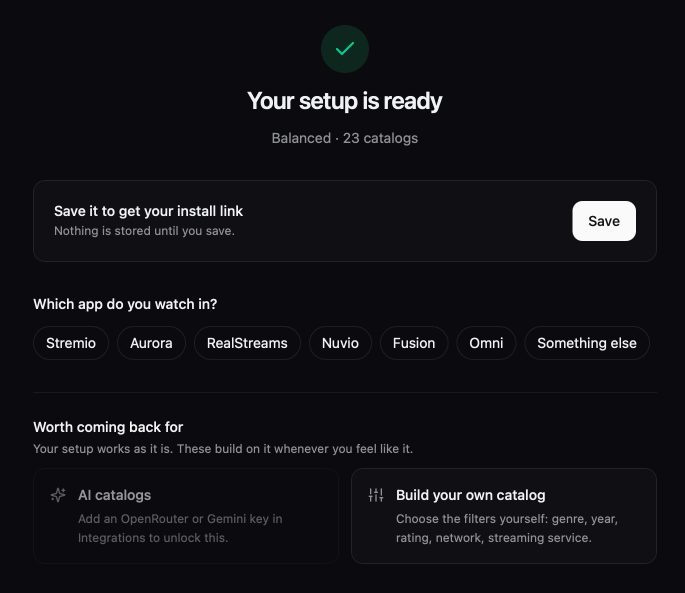
Under Which app do you watch in?, select Nuvio. Click Save, create a password, and click Save Configuration. Write down the UUID and password AIOMetadata shows you, since you’ll need both to change your setup later.
[Screenshot: the Which app do you watch in? options with Nuvio selected]Copy Your Manifest URL
Copy the Manifest URL that appears after saving. This is your personal AIOMetadata Nuvio addon URL.
[Screenshot: the Manifest URL after saving (UUID blurred out)]Open Addons in Nuvio
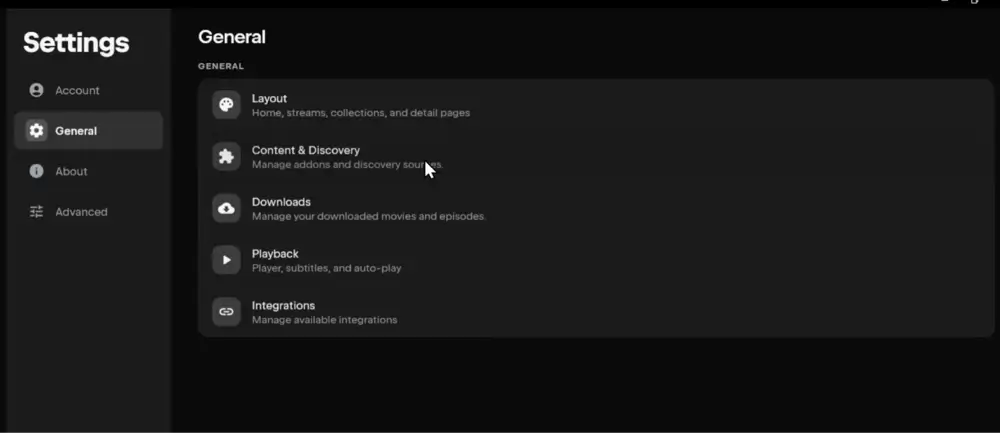
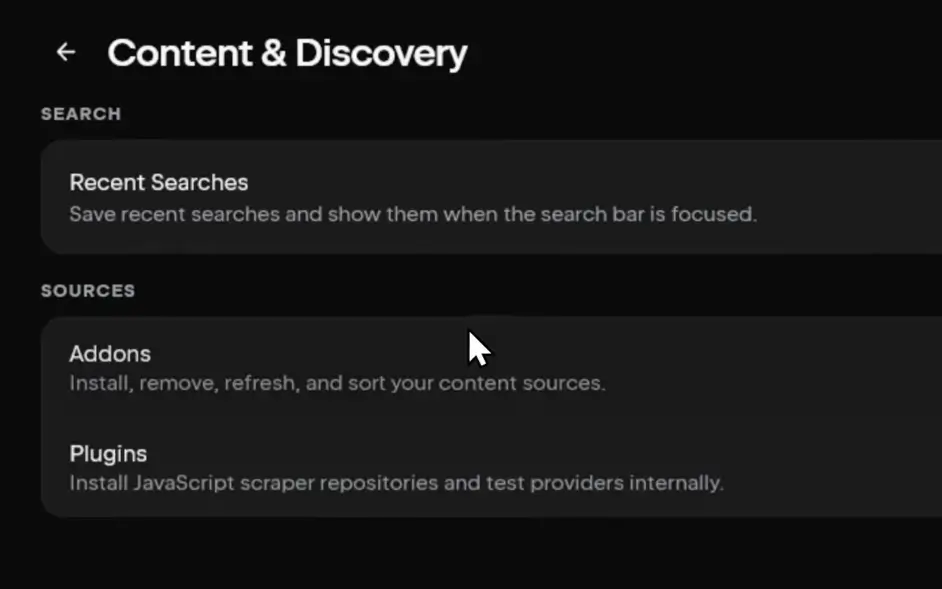
Launch Nuvio on your TV and open Addons from the side menu. You can also get there through Settings, then Content & Discovery, then Addons.
[Screenshot: Nuvio TV side menu with Addons highlighted]Select Install Addon
Select the Install addon field at the top of the Addons screen.
[Screenshot: the Nuvio TV Addons screen showing the Install addon field]Paste the URL and Click Install
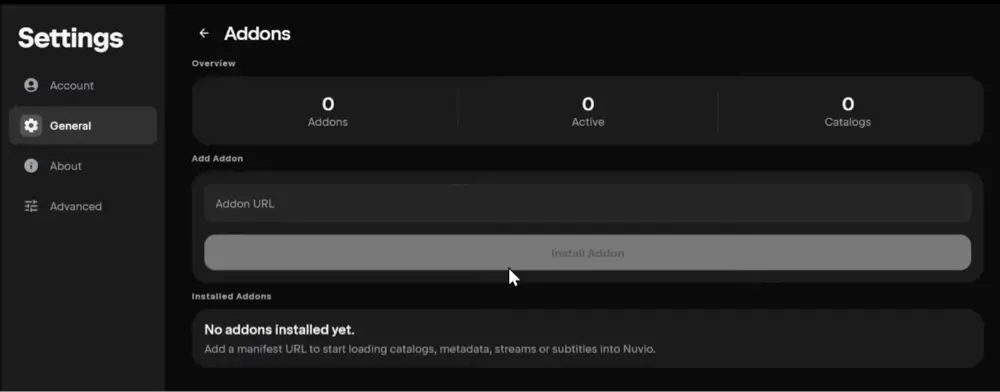
Enter your AIOMetadata URL and select Install. Nuvio confirms the install and AIOMetadata appears in your Installed list. The QR code method below is easier than typing with a remote.
[Screenshot: the AIOMetadata URL entered in the Install addon field]Check Your Home Screen
Go back to the Nuvio home screen. Your new AIOMetadata rows, like TMDB Popular and TMDB Trending, should now be there.
[Screenshot: the Nuvio home screen with AIOMetadata rows]
That’s it. The AIOMetadata Nuvio addon is now installed. If you use more than one Nuvio profile, repeat step 6 onward on each profile, unless that profile is set to Use Primary Addons.
How to Add AIOMetadata to Nuvio From Your Phone (QR Code)
Typing a long manifest URL with a Fire TV remote is slow, and Nuvio TV has a built-in way around it:
- In Nuvio on your TV, open Addons and select Manage from phone.
- Scan the QR code with your phone’s camera.
- On the page that opens on your phone, paste your AIOMetadata URL into Add addon by URL and add it.
- Back on the TV, Nuvio shows Confirm addon & catalog changes with AIOMetadata listed under Added. Select Confirm.
How to Add AIOMetadata to Nuvio on Android or iPhone
If you use Nuvio Mobile, you can install AIOMetadata right from the app:
- Open Nuvio and go to Settings, then Content & Discovery, then Addons.
- Paste your AIOMetadata URL into the Addon URL field.
- Tap Install Addon. Nuvio checks the manifest, then shows Addon Installed.
If your phone and TV are signed in to the same Nuvio account and profile, Nuvio Sync pushes AIOMetadata to your TV too. Reopen Nuvio on the TV or wait about a minute.
AIOMetadata Nuvio Catalogs: How to Choose, Hide and Reorder Home Screen Rows
Once AIOMetadata is installed, its rows show up on your Nuvio home screen, and you control them from both sides.
In AIOMetadata
Sign back in to your configuration and open the catalogs list. You can switch rows on or off, add streaming-service rows, or build your own catalog with filters for genre, year, rating, network, or streaming service. Save when you’re done.
In Nuvio
On Nuvio TV, open Addons and select Reorder home catalogs to change the order of your rows. You can also hide rows you don’t want on the home screen without touching your AIOMetadata setup.
Why you’re seeing duplicate rows
If you already had another catalog addon installed, you may see the same movies twice. Different catalogs can list the same title, so Nuvio shows it in each row. Hide the rows you don’t need, or remove the older catalog addon if AIOMetadata now covers everything.
Too many catalogs
Everything turns on 35 catalogs, and 22 of them go on your home screen. That’s a lot of scrolling on a TV. If it feels cluttered, go back to Balanced or switch off the rows you never open.
AIOMetadata Nuvio Collections: Build and Import Your Home Screen Layout
Nuvio collections are custom home screen sections with folders inside them, like a Movies collection with Action, Comedy, and Horror folders. AIOMetadata can build these for you:
- In your AIOMetadata configuration, choose Nuvio under Which app do you watch in? and select Open the collection builder.
- Arrange your catalogs into collections and folders, then export the layout for Nuvio.
- Import the export into Nuvio. On the Nuvio web panel, open Collections and use Import Collections to paste it in. On Nuvio TV, you can import a file named nuvio-collections.json from your device’s Downloads folder instead.
Collections are part of Nuvio Sync, so once they’re imported on one device, they show up on your other Nuvio devices on the same profile.
AIOMetadata Trakt, MDBList and Rating Poster Setup
These are all optional, but they’re what make AIOMetadata feel personal.
MDBList
Add a free MDBList API key to unlock curated lists from people like Dan Pyjama and Snoak, search public MDBList lists, and import your own MDBList watchlist as a catalog.
Trakt
Select Connect Trakt in the Trakt Integration section to add your Trakt watchlist, favorites, recommendations, and an Up Next row that shows the next episode for every show you’re watching. You can also hide titles you’ve already watched from your catalogs.
Rating posters
AIOMetadata can switch to rating posters, which put scores right on the poster art. Turn this on in the artwork settings if you like seeing ratings while you browse.
AIOMetadata Anime Settings for Nuvio
Anime is where AIOMetadata helps most, because anime seasons are numbered differently from one database to the next.
When you pick Movies TV and anime or Mostly anime, the wizard asks what you want to see when you open an anime:
- One page per series (suggested) uses TVDB. Separate seasons still show up as separate catalog entries, but opening any of them lands on one page with every season grouped together.
- One page per season uses Kitsu. Each season opens as its own title, which is how anime sites usually list it.
Either way, the episodes carry Kitsu IDs, so your stream addon has to understand Kitsu to find them. PenguPlay does, for example. If a stream addon finds nothing for anime but works for regular shows, that’s usually why.
How to Change Your AIOMetadata Nuvio Settings
AIOMetadata saves your setup to your password-protected configuration, so you don’t need a new URL every time you change something:
- Open the same instance and load your configuration with your UUID and password.
- Change your catalogs, integrations, or artwork settings and save.
- In Nuvio TV, open Addons and select Refresh Addons to pull the changes.
If you forget your password, there’s no easy way back in. Create a new configuration, install its URL in Nuvio, and remove the old AIOMetadata entry. Downloading a backup from the configure page before big changes saves you from this.
AIOMetadata Nuvio Addon Not Working? Troubleshooting
AIOMetadata catalogs not loading
The instance may be busy or down. Wait a few minutes and reopen Nuvio. If it’s still empty after an hour, try another instance.
“Failed to fetch” on the configure page
This means the instance didn’t respond while you were saving. Refresh the page and try again, or move to another instance.
Nuvio home screen is empty
No catalog addon is enabled, or all its rows are hidden. Check that AIOMetadata is installed on the profile you’re using and that its rows are switched on, then reopen Nuvio.
Catalogs not updating after a change
Select Refresh Addons in Nuvio, then reopen the app. Nuvio syncs in batches, so changes can take about a minute to show up.
Wrong titles, posters, or episode lists
Another addon may be supplying the metadata. Nuvio TV has a Prefer meta from external addon setting in its layout settings, and flipping it changes which addon’s details Nuvio shows. Nuvio’s own error screens suggest turning it off when a title won’t load its details at all.
No streams when you open a title
That’s expected from AIOMetadata alone. It’s a metadata addon, so install a stream addon like AIOStreams, Torrentio, or PenguPlay alongside it.
AIOMetadata vs Cinemeta vs Xperience: Which Nuvio Catalog Addon?
Here’s how AIOMetadata compares with the other catalog addons recommended for Nuvio.
AIOMetadata vs Cinemeta
Cinemeta is the basic catalog addon that comes with Stremio. It’s simple and reliable, but it’s built around IMDb data and doesn’t handle anime seasons well. AIOMetadata uses more sources, handles anime properly, and lets you choose your rows.
AIOMetadata vs Xperience in Nuvio
Xperience is another popular catalog addon for Nuvio and Stremio, and people often compare the two. AIOMetadata’s advantages are its anime handling, the Trakt and MDBList integration, and the Nuvio collection builder. Try AIOMetadata first, since its wizard gets you a working home screen in a few minutes.
AIOMetadata vs AIOStreams
These get mixed up because of the similar names, but they do different jobs. AIOMetadata fills your home screen and title pages. AIOStreams finds the streams when you press play. Most people run both, and they’re designed to work together.
Is AIOMetadata Legal?
AIOMetadata provides titles, artwork, and catalog lists from public databases like TMDB and TVDB. It doesn’t host, link to, or stream any video, so the addon itself isn’t in the same category as stream addons.
The legal question comes from the stream addons you pair it with. Kodi Tips does not have the ability to confirm the legal status of those addons, and legality rules differ depending on what country you live in.
User Responsibility
You, as the end user, bear responsibility for all content accessed through Nuvio addons, making it crucial that you understand what is legal to view.
Legal Streaming Options
For those seeking legal and verified streaming options, check our list of legal Kodi addons with 100% legal content.
AIOMetadata Nuvio Addon FAQ
Does AIOMetadata Provide Streams?
No. AIOMetadata only provides catalogs and metadata. To play anything, install a stream addon like AIOStreams, Torrentio, or PenguPlay alongside it.
Is AIOMetadata Free?
Yes. AIOMetadata is free, and the public instances are free to use. A paid private instance is available if you want your own cache and extra features like AI search.
Do I Need a TMDB API Key for AIOMetadata?
Not on the ElfHosted instance, which covers the metadata keys for you. Other instances may ask for your own free TMDB and TVDB keys.
Is AIOMetadata a Nuvio Plugin or an Addon?
AIOMetadata is an addon. Add it in Nuvio’s Addons screen with its manifest URL, not in the Plugins section, which is for scraper repositories.
Can You Use AIOMetadata With AIOStreams in Nuvio?
Yes, and it’s the most common pairing. AIOMetadata fills the home screen and title pages, and AIOStreams finds the streams.
Do I Need an AI Key for AIOMetadata?
No. AI catalogs are optional and need an OpenRouter or Gemini key added under Integrations. Everything else works without one.
Does Changing the AIOMetadata Language Change the Audio?
No. The language setting changes titles and descriptions. Audio language comes from the stream you pick, so set that in your stream addon or player.
Does the AIOMetadata Nuvio Addon Work on iPhone?
Yes. Add your AIOMetadata URL under Settings, Content & Discovery, Addons in Nuvio on your iPhone. It works the same way as on Android.
Disclaimer
We have no control over and do not host or upload any video, films, media file, or live streams. KodiTips is not responsible for the accuracy, compliance, copyright, legality, decency, or any other aspect of the content streamed from your device. If you have any legal issues please contact the appropriate media file owners or host sites.