
In this tutorial guide, I’ll show you how to add addons to Nuvio on Nuvio TV (Firestick, Android TV and Google TV) and in the Nuvio app for Android phones and tablets. I’ll also cover the QR code shortcut that saves you from typing long URLs with a remote.
The short version: every Nuvio addon is a single manifest URL. Open Addons in Nuvio, select the Install addon field (Addon URL on the phone app), paste the URL, and select Install.
The rest of this guide covers where to find those URLs, how to move your Stremio addons over, and how to fix the errors people hit most often. If you don’t have Nuvio yet, start with our Nuvio install guide for Firestick and Android TV.
How to Add Addons to Nuvio: Quick Facts
| Where on Nuvio TV | Addons in the side menu, or Settings, then Content & Discovery, then Addons |
| Where on Android | Settings, then Content & Discovery, then Addons |
| What you paste | An addon manifest URL (it usually ends in /manifest.json) |
| Phone shortcut for TV | Addons, then Manage from phone (scan a QR code) |
| Stremio addons | Yes, Nuvio uses the same addon format |
| Plugins | A separate Plugins menu, not the Addons screen |
| Profiles | Each profile has its own addon list unless it uses Primary Addons |
| Cost | Nuvio and most addons are free; some work best with a debrid service |
What Are Nuvio Addons?
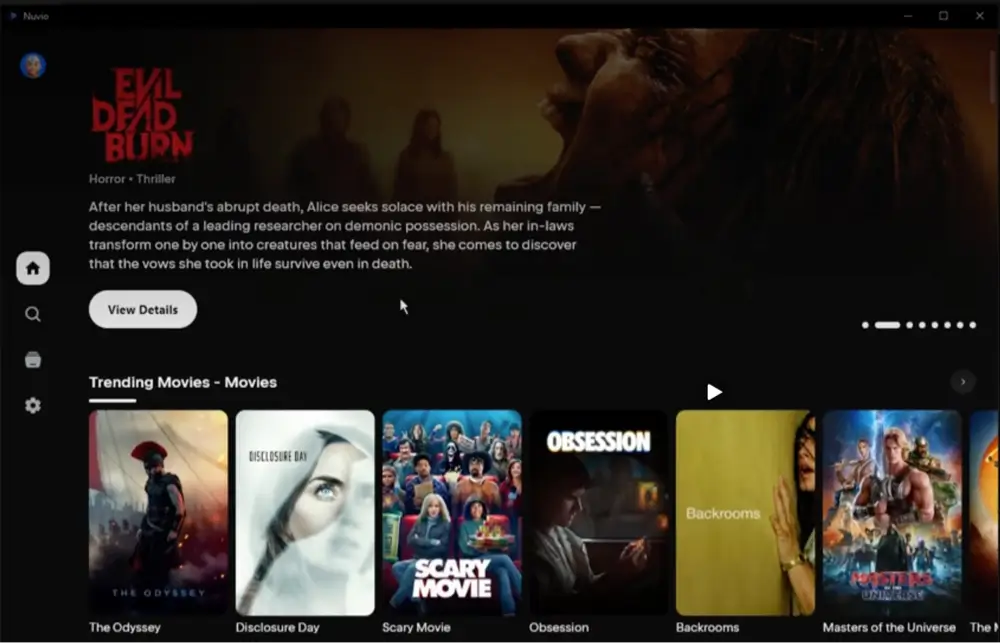
Nuvio on its own is a player and library with nothing in it. Addons are what fill it. Each addon is a small web service that tells Nuvio where to get one or more of these:
- Catalogs: the rows on your home screen, like popular movies or trending shows
- Metadata: posters, descriptions, cast and episode lists
- Streams: the playable sources you see after you pick a title
- Subtitles: subtitle files in your language
When you install an addon, Nuvio reads its manifest, a small file listing which of those jobs the addon handles. That’s why a stream addon like Torrentio adds nothing to your home screen, and a catalog addon like Cinemeta adds rows but no sources. Most setups need at least one catalog addon and one stream addon, plus a subtitle addon if you want one.
If you’re coming from Kodi, the idea is similar, but there are no repositories or zip files to deal with. Our Kodi vs Nuvio comparison explains the other differences.
Nuvio Addons vs Plugins: What’s the Difference?
Nuvio has two separate systems, and mixing them up is a common reason an install fails.
- Addons install one at a time from a manifest URL, in the Addons screen. They use the same format as Stremio addons.
- Plugins are JavaScript scrapers installed from a repository URL, in the Plugins screen. One repository can add a whole bundle of providers at once.
Paste a plugin repository URL into the Addons screen (or the other way around) and Nuvio will reject it. This guide covers addons only.
Where to Find Nuvio Addon URLs (Manifest Links)
Every addon has a manifest URL, and that’s the only thing Nuvio needs from it. You’ll find them in three places:
- The addon’s own website or configure page. Addons with settings (debrid, languages, quality filters) give you a personal URL after you set them up, usually through a Copy Link or Copy URL button.
- Your Stremio account, if you’re switching over (see the Stremio section below).
- Community lists, such as the r/nuvioaddons subreddit and addon directory sites. Prefer links that point to the addon’s official domain.
A manifest URL usually ends in /manifest.json. If a link starts with stremio:// instead of https://, swap stremio:// for https:// and it will work in Nuvio.
Nuvio Addon URL List: Torrentio, Cinemeta and OpenSubtitles
These three public manifests work as they are, with no setup. I checked that each one returns a valid manifest:
| Addon | What It Adds | Manifest URL |
|---|---|---|
| Cinemeta | Movie and TV catalogs, plus metadata | https://v3-cinemeta.strem.io/manifest.json |
| OpenSubtitles v3 | Subtitles | https://opensubtitles-v3.strem.io/manifest.json |
| Torrentio (default settings) | Torrent streams, no debrid | https://torrentio.strem.fun/manifest.json |
If you’re starting from scratch, Cinemeta and OpenSubtitles plus one stream addon covers catalogs, details, sources and subtitles, which is a complete basic setup.
The default Torrentio link streams peer-to-peer with no debrid service, so use a VPN with it, or set it up with debrid first (steps below). For a free option that doesn’t use torrents, see our PenguPlay Nuvio addon guide.
Why a Configured Nuvio Addon URL Is Private
When you set up an addon with a Real-Debrid or TorBox key, that key is usually baked into the manifest URL or tied to it on the addon’s server. Anyone with the link can use your debrid account.
So don’t post your URL in Reddit threads or Discord screenshots. If it does leak, generate a new API key in your debrid account and reinstall the addon with a fresh URL. The same goes for a TorBox addon URL for Nuvio that someone shares publicly: it runs on their account, not yours.
How to Add Addons to Nuvio TV (Firestick, Android TV & Google TV)
These steps work on every Nuvio TV device: Fire TV Stick, Fire TV Cube, Chromecast with Google TV, Nvidia Shield and other Android TV boxes. The process is the same for any addon; only the URL changes.
This guide shows you how to add addons to Nuvio on Firestick, Android TV, or Google TV.
Total Time: 5 minutes
Copy the Addon Manifest URL
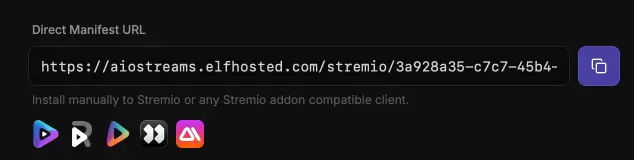
Get the manifest URL for the addon you want from the list above or the addon’s configure page. If you’re entering it with a remote, keep it open on your phone so you can read it off.
[Screenshot: the addon configure page with the Copy Link button highlighted]Open Addons in Nuvio
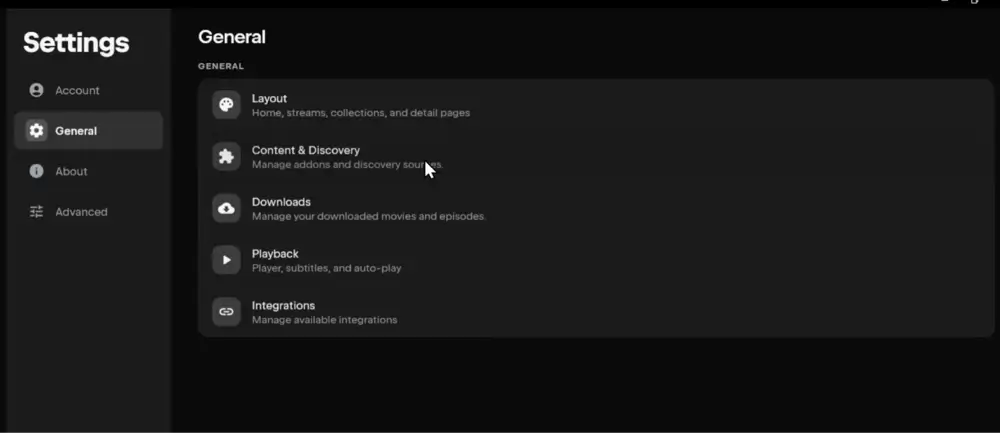
Launch Nuvio on your TV and select Addons from the side menu. You can also get there through Settings, then Content & Discovery, then Addons.
[Screenshot: Nuvio TV side menu with Addons highlighted]Select the Install Addon Field
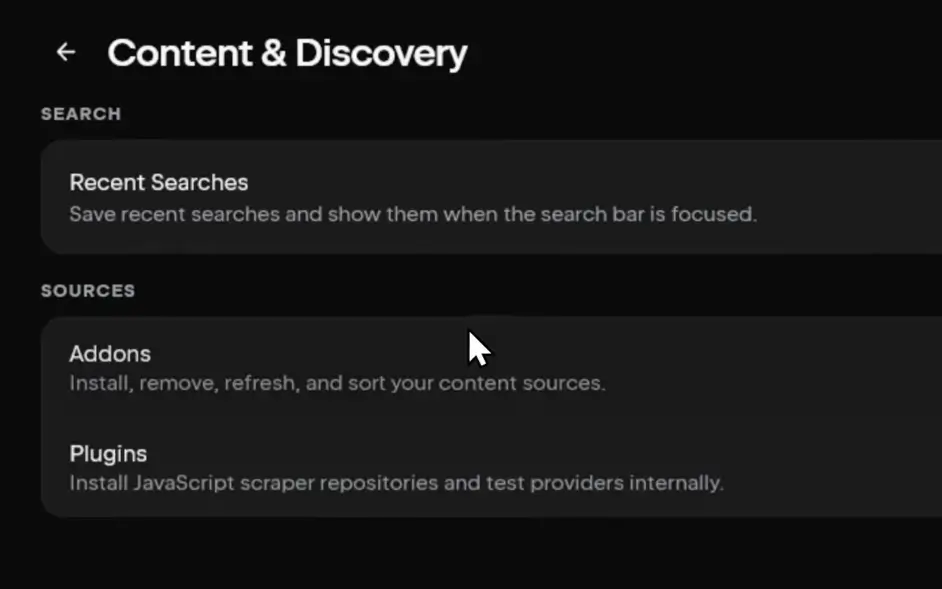
Select the Install addon field at the top of the Addons screen to bring up the on-screen keyboard. To use your phone instead, select Manage from phone (see below).
[Screenshot: the Addons screen with the Install addon field selected]Enter the URL and Select Install
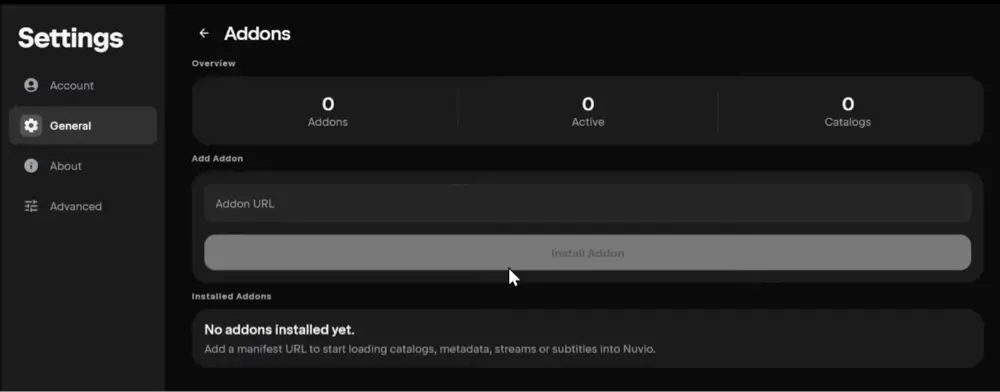
Type or paste the full manifest URL, including https://, then select Install. Nuvio checks the manifest, shows a short Installed message and adds the addon to your Installed list.
[Screenshot: the URL entered in the Install addon field and the Install button]Test a Movie or Episode
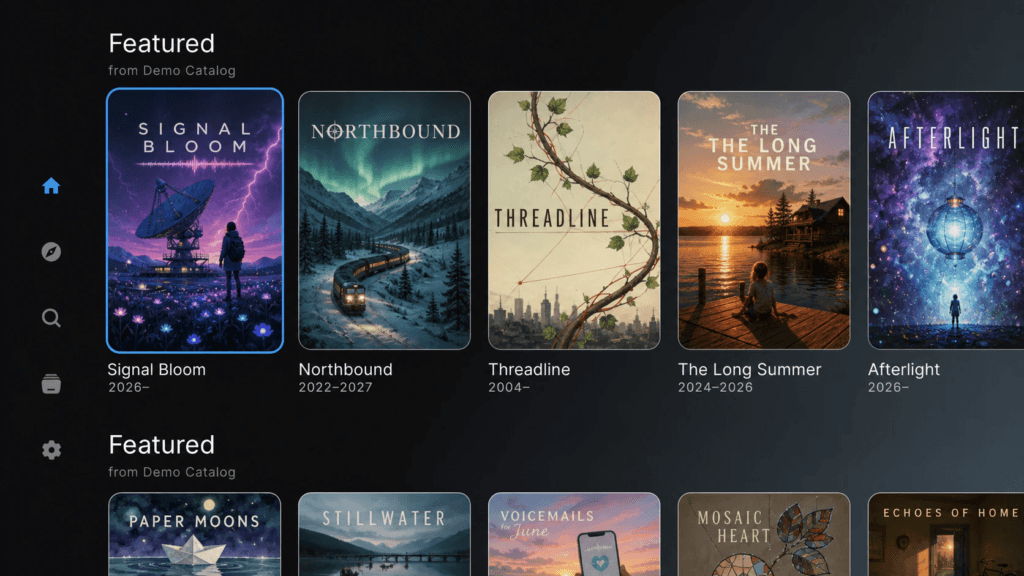
Go back to Home and open any title. Catalog addons add new rows to Home, and stream addons add results to the source list when you pick a movie or episode.
[Screenshot: a source list showing results from the new addon]
Every stream addon is another server Nuvio waits on before it shows sources, so a lean list of four or five addons loads faster than fifteen.
Nuvio’s Set Up Add-ons Screen on First Launch
On a fresh install, Nuvio TV may open a Set up add-ons screen that asks you to install one addon before you start. It works the same way: enter a manifest URL, or select Show QR to do it from your phone. To look around first, select Continue for now and add addons later from the Addons screen.
How to Add Addons to Nuvio From Your Phone (QR Code)
Typing a long configured URL with a Fire TV remote is slow. Nuvio TV has a built-in way around it:
- In Nuvio TV, open Addons and select Manage from phone.
- Scan the QR code with your phone’s camera. A Manage Addons page opens in your phone’s browser.
- Paste the manifest URL into the Add addon by URL field and tap Add. You can also remove addons and reorder catalogs on this page.
- Back on the TV, Nuvio shows a Confirm addon & catalog changes screen listing what you added or removed. Select Confirm.
This is the fastest way to add addons to Nuvio on a Firestick, because you copy and paste the URL on your phone instead of typing it with the remote.
How to Add Addons to Nuvio on Android (Phone & Tablet)
The Nuvio app for Android phones and tablets has its own addon screen, and it’s easier than the TV because you can copy a URL straight from your browser:
- Open Nuvio and go to Settings.
- Tap Content & Discovery, then Addons.
- Under Add Addon, paste the manifest URL into the Addon URL field.
- Tap Install Addon. Nuvio shows Checking Addon while it validates the manifest, then Addon Installed.
Your addons then appear under Installed Addons, with badges showing how many catalogs and resources each one provides, and whether it’s Configurable. The same list has buttons to refresh, reorder, configure or delete each addon.
How to Add Addons to Nuvio on iPhone and iPad
On iPhone and iPad the path is the same: Settings, then Content & Discovery, then Addons. Depending on which build you installed, the button may read Add Addon instead of Install Addon, and the screen layout can differ slightly. The manifest URL works the same way either way.
How to Add Stremio Addons to Nuvio
Nuvio was built around the Stremio addon system, so if you already use Stremio, you don’t have to start from scratch. You add Stremio addons to Nuvio exactly like any other addon: copy the manifest URL and install it.
Do Stremio Addons Work in Nuvio?
Yes, nearly all of them. Nuvio reads the same manifest format, so Torrentio, Comet, MediaFusion, AIOStreams, Cinemeta, OpenSubtitles and most catalog addons install and behave the way they do in Stremio.
The main exception is an addon that only runs over plain HTTP, which Android blocks (see the troubleshooting section). If a Stremio addon won’t work, look for an HTTPS instance of it or another addon that does the same job.
How to Move Your Stremio Addons to Nuvio
Nuvio has no built-in import from Stremio, so the reliable method is to copy your addons over one at a time:
- Open Stremio (the app or web.stremio.com) and go to Addons.
- Select an installed addon and use Share addon to copy its manifest URL.
- Install that URL in Nuvio with the TV, phone QR or Android steps above.
- Repeat for each addon. Start with your catalog addon and main stream addon, then add the rest.
A configured addon’s shared URL keeps your settings, so Torrentio with Real-Debrid, for example, works in Nuvio right away without setting it up again.
NuvioSync, an unofficial fan site, also offers a Stremio-to-Nuvio migration tool that can move your library, watch history and some addon URLs. Nuvio’s developers don’t make it, so read what it asks for before you connect your Stremio account, and download the backup it offers first.
How to Add Torrentio, AIOStreams and Debrid Addons to Nuvio
These are the addons people ask about most. Each one still installs from a single URL, but you create that URL on the addon’s website first.
How to Add Torrentio to Nuvio
Torrentio is a popular torrent Nuvio addon that scrapes peer-to-peer torrent files to find movie and TV strreams. You build up the configuration in a browser, and then copy a URL into Nuvio.
Our Torrentio Nuvio addon guide covers the full setup and how to fix common issues.
How to Add AIOStreams to Nuvio
AIOStreams bundles several stream addons and your debrid key into one URL. You build the configuration in a browser, click Install and then Copy URL on its Save & Install page, and paste that into Nuvio. Our AIOStreams Nuvio addon guide covers the full setup, including which instance to use.
How to Add Real Debrid to Nuvio
Most people add Real-Debrid to Nuvio through their stream addons rather than the app. You paste your Real-Debrid API key into the addon’s configure page (Torrentio, AIOStreams, Comet and MediaFusion all support it), and the addon’s URL carries it into Nuvio. Your key is at real-debrid.com/apitoken.
Nuvio TV also has a Connected Services option under Integrations in Settings, where you can enter a Real-Debrid API token for Direct Debrid results. Nuvio labels these integrations experimental and says they may change or be removed, so I’d treat the addon method as your main setup. Still choosing a service? See our Real-Debrid alternatives comparison.
How to Add a TorBox Addon to Nuvio
TorBox works the same way. Select TorBox in the addon’s debrid options (it’s in Torrentio’s Debrid Provider list and AIOStreams’ services), paste your TorBox API key, and install the URL the addon generates. Nuvio’s Connected Services also lets you connect a TorBox account directly for its cloud library.
How to Add Catalogs to Nuvio and Change the Addon Order
Home screen rows come from catalog addons. To add catalogs to Nuvio, install a catalog addon such as Cinemeta or AIOMetadata the same way as any other addon, and its rows appear on Home.
To change the order on Nuvio TV, open Addons and select Reorder home catalogs. It controls the order of catalog and collection rows on Home in every layout. The Manage from phone page also lets you turn individual catalogs on or off. In the Android app, use Move addon up and Move addon down in the Installed Addons list, and adjust rows in the home screen settings under Content & Discovery.
Also check Prefer meta from external addon in Nuvio TV’s Layout settings. It makes Nuvio pull details from a separate metadata addon instead of the catalog addon. If posters or episode lists look wrong after you add a new catalog, this setting is the usual cause.
How to Refresh, Update and Remove Nuvio Addons
- Refresh: on Nuvio TV, open Addons and select Refresh Addons to pull the latest addon changes for the current profile. Use it after you change an addon’s settings on its website without getting a new URL (AIOStreams works this way). In the Android app, each addon has its own Refresh button.
- Update: addons run on their own servers, so there’s nothing to download. If a settings change gives you a new URL (Torrentio does this), install the new URL and remove the old one.
- Remove: on Nuvio TV, select the addon, choose Remove, then confirm with Yes. In the Android app, use Delete addon.
- Configure: addons marked Configurable have a Configure addon button in the Android app that opens their settings page, so you don’t have to hunt down the addon’s website to change a setting.
Nuvio Addons and Profiles: Use Primary Addons Explained
Every Nuvio profile can have its own addon list. Profile 1 is the primary profile, and other profiles can manage their own addons or turn on Use Primary Addons to share Profile 1’s list.
When a profile shares the primary list, its Addons screen says it’s using the primary profile’s addons and can’t be changed. To add or remove anything, switch to Profile 1. This is usually what’s going on when an addon install seems blocked for no reason.
How to Copy Nuvio Addons to Another Profile
There’s no copy button for addons. Nuvio’s option to copy settings between profiles deliberately leaves addons, plugins and account connections alone. You have two choices: turn on Use Primary Addons for that profile to share Profile 1’s list, or install addons on that profile separately if you want a different setup, like a kids profile with catalog addons only.
How to Sync Nuvio Addons Across Devices
If you sign in to a Nuvio account, Nuvio Sync can sync your addons, profile settings and collections across devices. Add an addon on your phone and it appears on your Firestick under the same account and profile.
Sync isn’t instant. Nuvio syncs in batches to save battery and data, mostly when the app opens, comes back to the foreground or switches profiles. If a new addon hasn’t appeared, close and reopen Nuvio or give it about a minute.
Nuvio Addons Not Working? How to Fix Common Errors
Each heading below is a message Nuvio shows on screen, followed by what it means and how to fix it.
Nuvio Addon Install Failed or Unable to Load Manifest
Nuvio couldn’t read a valid manifest at that address. Check for a typo, a missing /manifest.json at the end, or a URL that got cut off when you copied it. It also happens when the addon’s server is down, or when you paste a plugin repository URL into the Addons screen.
To test it, open the URL in a browser. A working manifest shows a block of text that starts with the addon’s id and name.
Enter a Valid Addon URL and HTTP Addon Errors
Nuvio TV shows Enter a valid addon URL, or Addon URL must start with http or https, when the text isn’t a full web address. Add https:// to the front, and swap stremio:// for https:// if you copied a Stremio install link.
If an addon installs but then fails because it uses an insecure HTTP connection that Android blocked, the addon only works over plain HTTP. Look for an HTTPS version of the same addon.
No Installed Addon Supports Streams in Nuvio
You have catalog addons but no stream addon that covers this title, so there’s nothing to play. Install a stream addon such as Torrentio, AIOStreams or PenguPlay.
If you already have one, Nuvio’s longer message lists the stream addons it tried. When they’re listed but return nothing, the addon may be down, your debrid key may have expired, or those sources don’t have the title. On a profile using primary addons, check that Profile 1 has the stream addon.
No Addon Provides Meta for This Content in Nuvio
None of your addons could load the details page (description, episodes, artwork) for that title. Install an addon that provides metadata, like Cinemeta or AIOMetadata, or turn off Prefer meta from external addon in Layout settings if it’s pointing Nuvio at an addon that doesn’t cover this title.
Nuvio Addons Not Showing Up or No Home Rows Available
If Home is empty or Nuvio says there are no active addons, one of three things is usually wrong: no catalog addon is installed, every catalog row is hidden, or you’re on a different profile. Install or enable a catalog addon, check Reorder home catalogs for hidden rows, and confirm the profile. Then reopen the app so sync can load the latest setup.
Nuvio Addons Not Syncing
Make sure both devices are signed in to the same Nuvio account and the same profile, since each profile keeps its own addon list. Then reopen the app on the device that’s missing the addon. Sync runs in batches, not live.
Nuvio QR Code Not Working or Not Generating
Nuvio uses two different QR codes: the Manage from phone code on the Addons screen, and the sign-in code for your Nuvio account. If the addon QR code won’t load, check the TV’s internet connection, restart Nuvio and try again, or skip it and type the URL into the Install addon field. A sign-in QR code that won’t load is an account problem, not an addon one, and the addon steps in this guide work without signing in.
Is It Safe to Add Addons to Nuvio?
Nuvio itself is open source on GitHub, and so are most popular addons. The risk comes from which addons you add. An addon runs on someone else’s server and sees what you search for and play, and a configured addon holds your debrid key. Stick to addons from known developers and official domains, avoid random URLs from comment sections, and remove addons you no longer use.
Nuvio and its addons also don’t hide your IP address from your internet provider or from the sources you stream, which matters most with P2P addons like default Torrentio. A VPN will give you an anonymous connection while streaming through Nuvio addons. Click here to view the #1 VPN for streaming.
Learn how to install and configure your VPN here.
How Do You Stay Protected While Using Nuvio?
Sign up for a premium VPN and access the internet unrestricted. We offer exclusive discounts for IPVanish and NordVPN, the highest respected VPNs in the streaming community. Both of these VPNs have some great features for users:
- Apps for Android, iOS, Mac, Linux & more
- Zero Logs
- Unlimited bandwidth
- Tier 1 hardware (no speed slowdown)
- Access to hundreds of VPN servers

Is Using Nuvio Addons Legal?
Determining the legality of Nuvio addons is challenging without knowing if the addons and sources they pull from have the proper licensing. Kodi Tips does not have the ability to confirm the legal status of these addons.
Plus, legality rules differ depending on what country you live in.
Copyright Concerns with Nuvio Addons
At first glance, many addons appear to link to copyrighted works without the necessary consent, which raises the concern about their legality.
Public Domain Titles
Users can access titles in the public domain, which are not subject to copyright laws. This allows free download, streaming, and sharing without legal issues.
User Responsibility
You, as the end user, bear responsibility for all content accessed through Nuvio addons, making it crucial that you understand what is legal to view.
Legal Streaming Options
For those seeking legal and verified streaming options, check our list of legal Kodi addons with 100% legal content.
How to Add Addons to Nuvio: FAQ
How Do I Add Addons to Nuvio?
Copy the addon’s manifest URL, open Addons in Nuvio (Settings, then Content & Discovery, then Addons on the phone app), paste the URL into the install field and select Install. On Nuvio TV you can also select Manage from phone and add it by scanning a QR code.
Can Nuvio Use Stremio Addons?
Yes. Nuvio uses the same addon format as Stremio, so most Stremio addons, including Torrentio, Comet, MediaFusion, AIOStreams and Cinemeta, install in Nuvio from the same manifest URL.
Do Nuvio Addons Require Real Debrid?
No. Nuvio and most addons work without a debrid service. Free options include default Torrentio (P2P streams, use a VPN) and PenguPlay. A debrid service like Real-Debrid or TorBox gives you faster, more reliable cached links, though.
Can I Add Nuvio Addons From My Phone?
Yes. In Nuvio TV, open Addons, select Manage from phone and scan the QR code. Add the URL on your phone, then select Confirm on the TV. If you use a Nuvio account, addons you install in the phone app also sync to your other devices on the same profile.
Can I Add the Nuvio Streams Addon to Stremio?
Nuvio Streams was a separate Stremio addon made by the same developer, and its GitHub repository was archived in April 2026, so it’s no longer maintained. It isn’t needed to use Nuvio, which works with any Stremio-compatible addon.
Should I Use a VPN With Nuvio Addons?
Yes. Addons don’t hide your IP address from your internet provider or the sources you stream, and it matters most with P2P addons. We recommend NordVPN.
Disclaimer
We have no control over and do not host or upload any video, films, media file, or live streams. KodiTips is not responsible for the accuracy, compliance, copyright, legality, decency, or any other aspect of the content streamed from your device. If you have any legal issues please contact the appropriate media file owners or host sites.