
In this tutorial guide, I’ll show you exactly how to install the Red Light Kodi addon on your Android TV box or Amazon Firestick. I’ll also cover the unique features that made it the go-to FEN Light replacement, plus something you should know before you install it.
Red Light is a movies, TV, and anime addon for Kodi, and a fork of FEN Light built for speed. It’s an unofficial third-party addon hosted on The Red Repo.
Plus, is the Red Light Kodi addon safe to install and legal to use? I’ll cover that in detail below, since there’s something specific about this one worth knowing before you install it.
Red Light Kodi Quick Facts
| Addon Name | Red Light |
| Repository | The Red Repo |
| Repository URL | https://repo.redwizard.xyz |
| Kodi Version Compatibility | Kodi 21 Omega+ |
| Requires | Gears Scrapers provider module, plus Real Debrid, Premiumize, TorBox, or AllDebrid |
What is the Red Light Kodi Addon?
Red Light is the addon most FEN fans have moved to now that FEN and FEN Light have both lost development momentum. It’s a fork built for speed, with a familiar FEN-style interface and menu layout, and it’s actively maintained through The Red Repo.
Red Light is debrid-only. You’ll need a premium account with Real Debrid, Premiumize, TorBox, or AllDebrid, plus the Gears Scrapers provider module. More on both in the setup section below.
Red Light Kodi Addon Features You Should Know About
A Fast FEN Light Replacement
Red Light was built specifically to replace FEN Light after that addon lost development momentum, with a focus on faster menu and scraping performance while keeping the same general layout.
Trakt Integration and a Familiar Layout
Trakt integration lets you sync your watchlist and viewing progress across devices, and the Movies, TV Shows, Anime, Discover, and People sections will feel familiar if you’ve used FEN or FEN Light before.
Support for Multiple Debrid Providers
Red Light works with Real Debrid, Premiumize, TorBox, and AllDebrid, so whichever debrid account you already use, there’s a good chance Red Light supports it.
What We Like and What We Don’t Like About Red Light
What We Like
- Solid FEN Light replacement with a familiar layout
- Trakt integration for cross-device syncing
- Supports four different debrid providers
- Active development pace
What We Don’t Like
- A VirusTotal scan flagged one suspicious file in the repository, see the safety section below before installing
- No free-links mode, a paid debrid account is required
- Requires installing Gears Scrapers as a separate step, and it’s less common than CocoScrapers so troubleshooting help is thinner
- A newer addon, so its long-term update track record isn’t proven yet
Is the Red Light Kodi Addon Safe to Use?
Unlike most third-party Kodi addons, Red Light has an actual documented red flag: an independent VirusTotal scan of The Red Repo URL turned up one file flagged as suspicious for malware. That’s a specific, real finding tied to this particular repository, separate from the generic addon-permissions warning covered further below.
That doesn’t automatically mean the Red Light addon itself is compromised, shared repositories sometimes host several addons and builds side by side, so a flagged file elsewhere in the repo doesn’t necessarily implicate Red Light specifically. But we can’t independently confirm which file was flagged or why, so treat this repository with real caution rather than the usual “harmless permissions warning” framing.
Separately, and true of any third-party addon, you’ll also see Kodi’s standard permissions warning the first time you install anything outside the official repository:
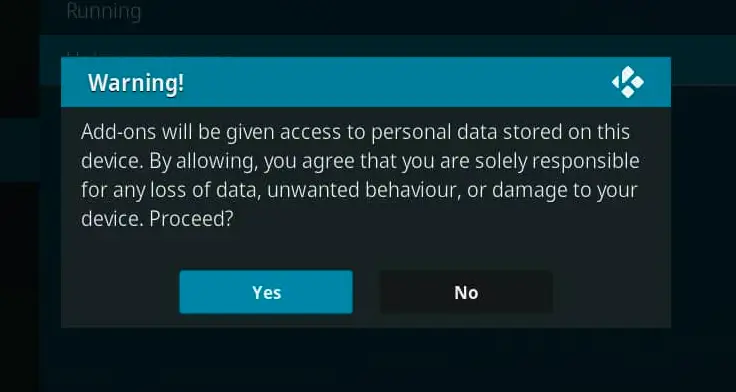
Given the confirmed VirusTotal finding above, a VPN is more than just a good idea here, it’s the minimum precaution if you decide to proceed. A Kodi VPN gives you an anonymous, encrypted connection while streaming or downloading from any third-party addon.
Click here to view the #1 Kodi VPN service.
Learn how to install and configure your Kodi VPN here.
How Do You Stay Protected While Using Kodi?
Sign up for a premium Kodi VPN and access the internet unrestricted. We offer exclusive discounts for IPVanish and NordVPN, the highest respected VPNs in the Kodi community. Both of these VPNs have some great features for users:
- Apps for Android, iOS, Mac, Linux & more
- Zero Logs
- Unlimited bandwidth
- Tier 1 hardware (no speed slowdown)
- Access to hundreds of VPN servers


How to Install the Red Light Kodi Addon on Android TV or Firestick
This guide will show you how to install the Red Light Kodi addon.
Total Time: 5 minutes
Access SYSTEM Page
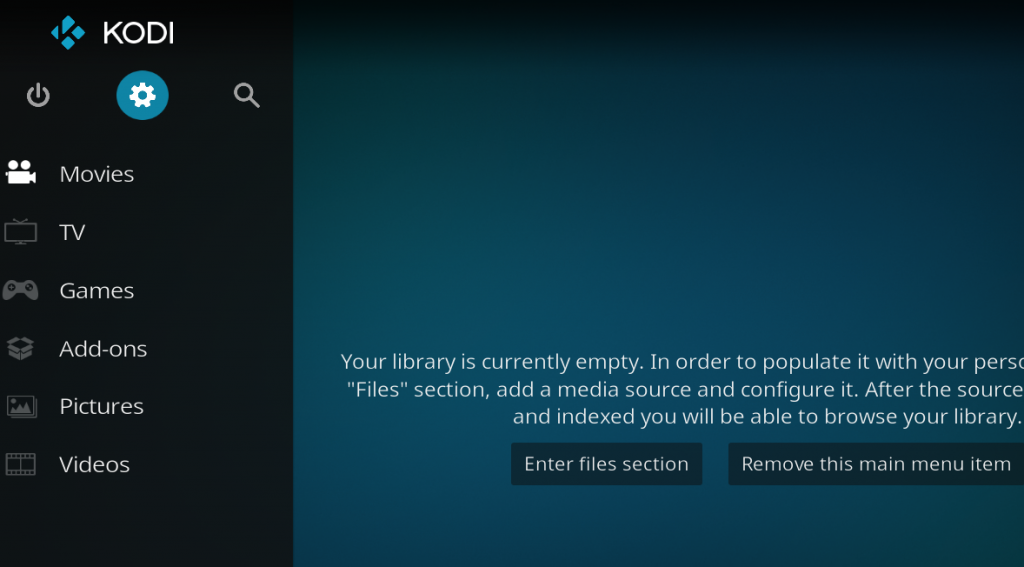
Access the Kodi SYSTEM screen by clicking on the gear icon on the Kodi main menu.
Click on File Manager
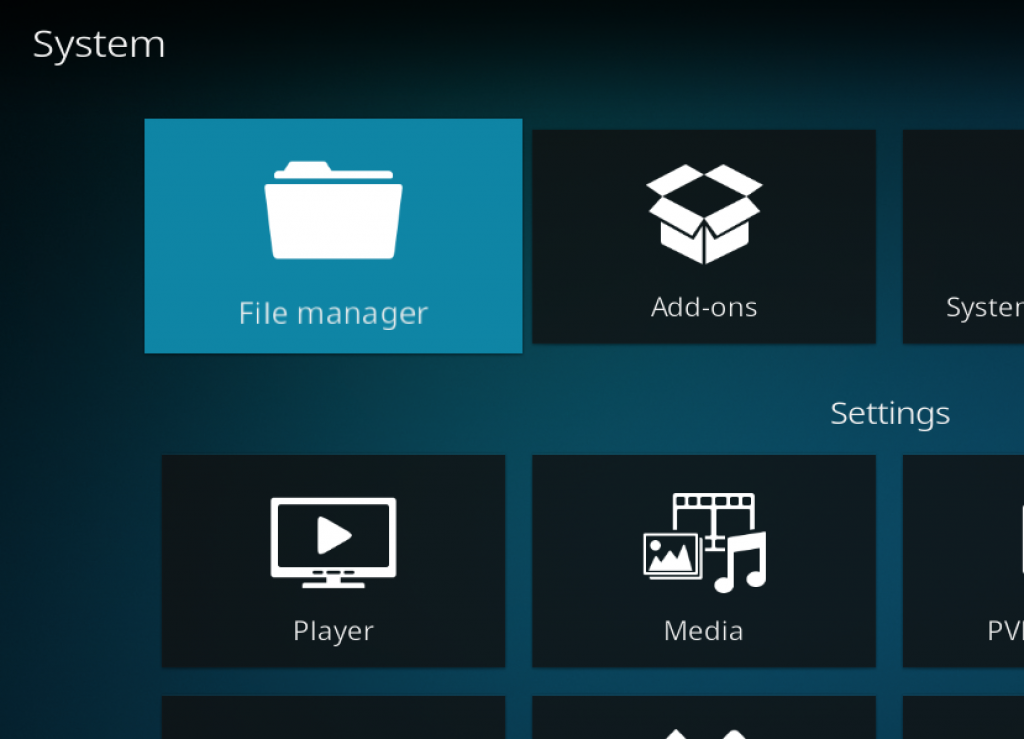
Click on the File Manager tile.
Select Add Source
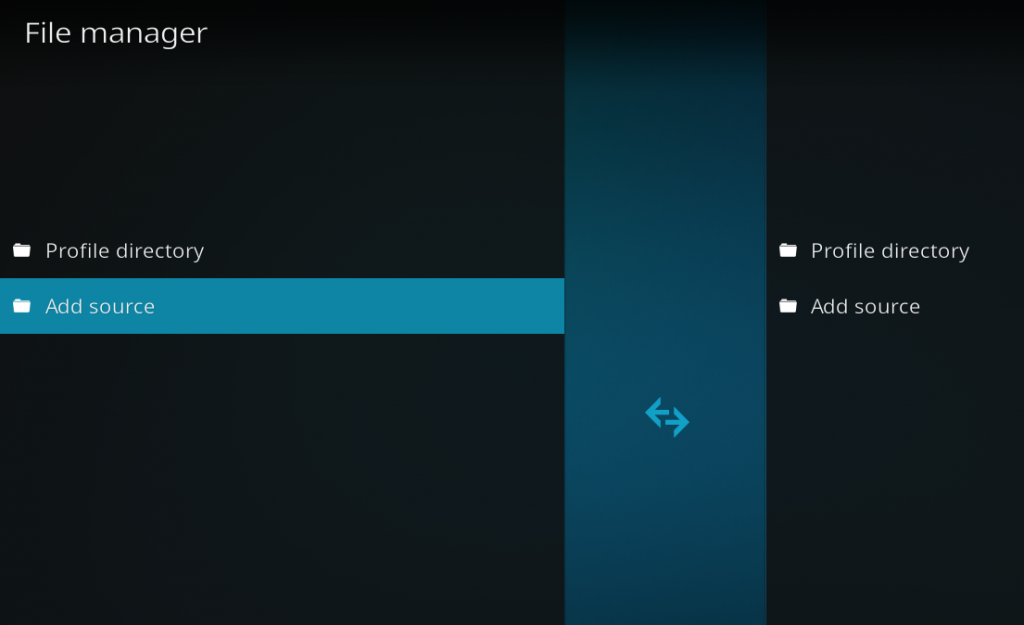
Click on Add Source at the bottom of the left side pane.
Add File Source
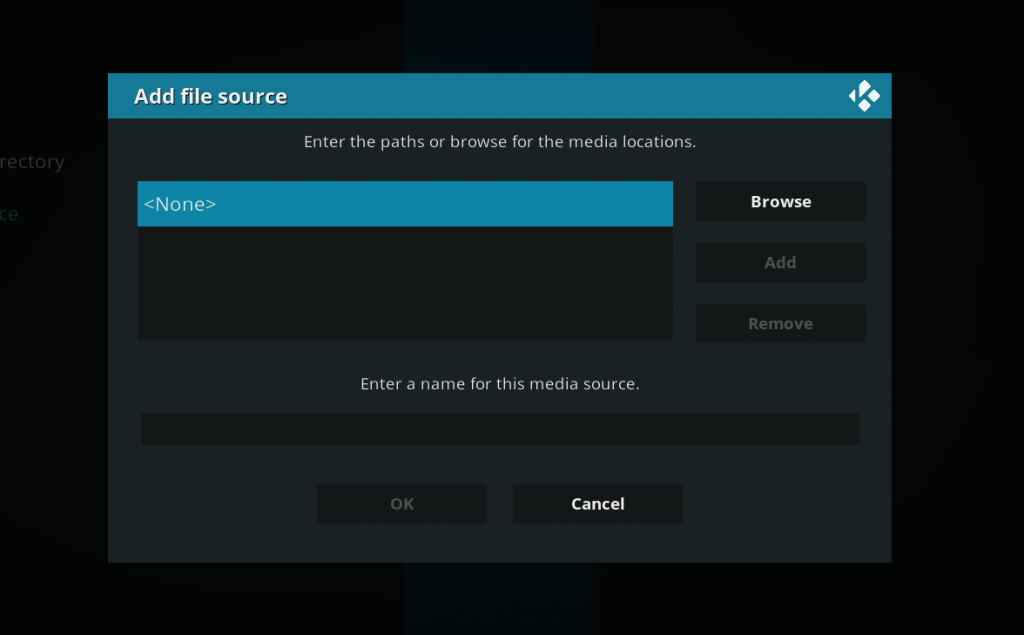
First, click on None and enter in https://repo.redwizard.xyz and then select Done.
Click on the empty box underneath “Enter a name for this media source” and name it redwizard and then click OK.
Access Kodi Addons Screen
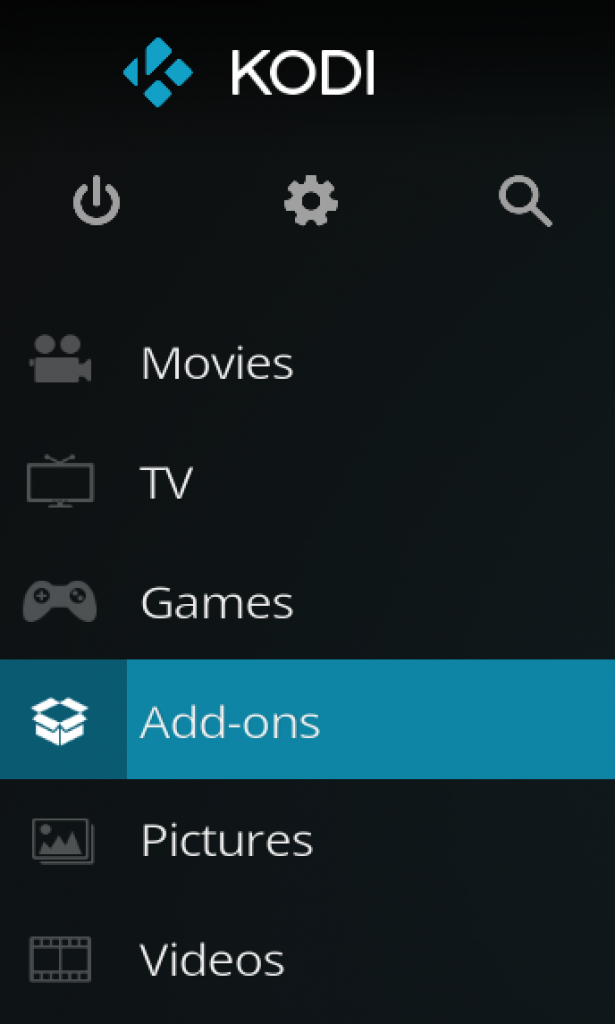
Go back to the Kodi home screen and then click on the Addons button.
Select the Addon Browser
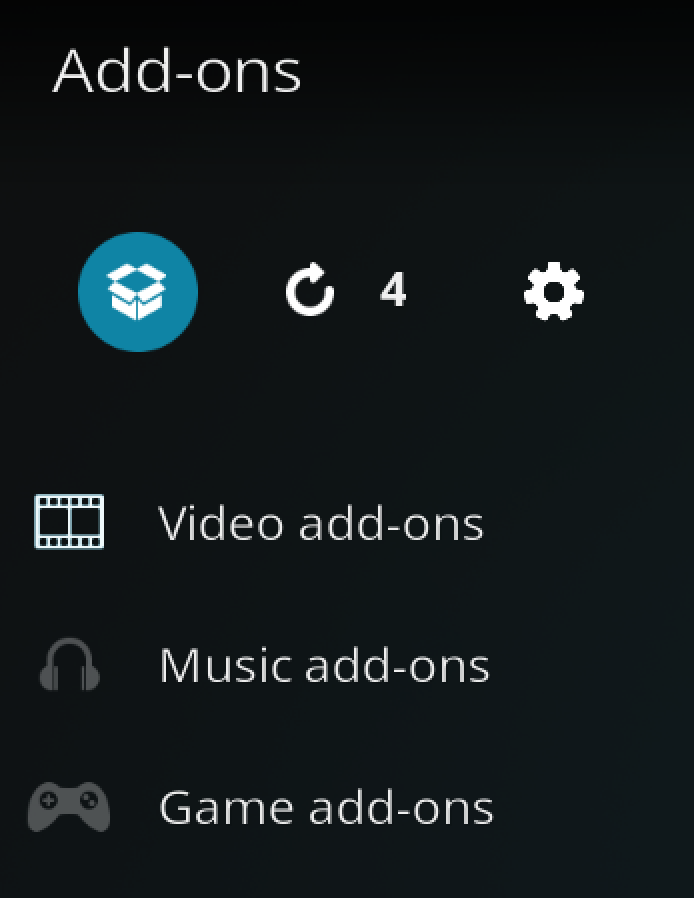
Access the Kodi Add-on Browser by clicking on the package icon in the upper-left corner of this screen.
Install the Red Wizard Repository
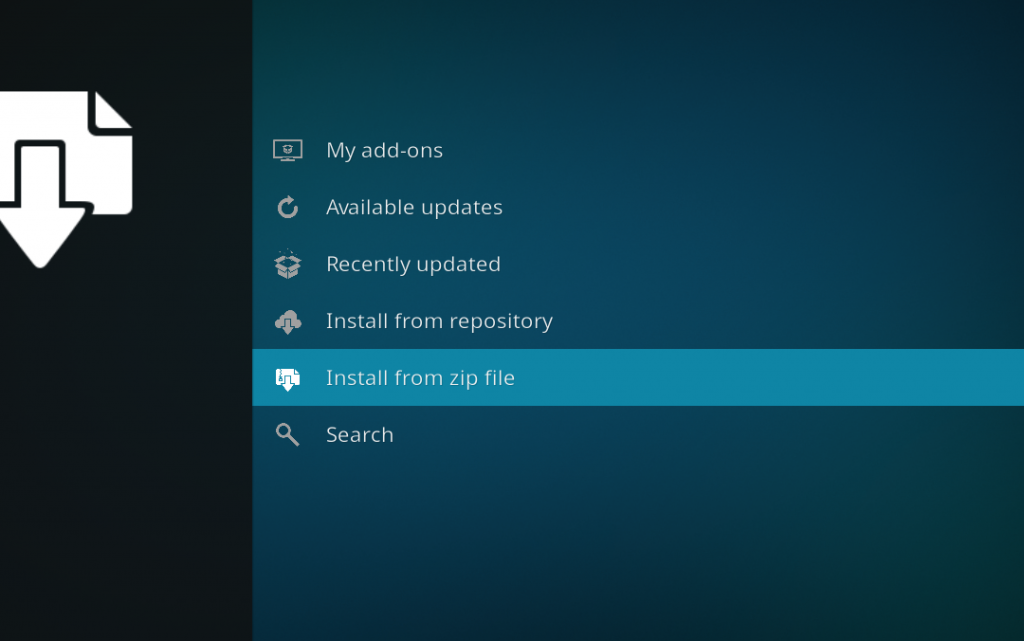
Install the repository by clicking on Install from Zip File then redwizard then repository.redwizard-x.x.x.zip and waiting for the repository installed icon to appear in the top right corner.
Install the Red Light Kodi Addon
Next, select Install From Repository then The Red Repo then Video Add-ons then Red Light. Click on Install and wait for the Add-on Enabled Notification.
The Red Light Kodi addon will now be in your Video Add-ons section. It won’t show any streams yet though, that’s what the next section is for.
Additional Setup: Installing Gears Scrapers and a Debrid Provider
Red Light won’t show any streams until you install the Gears Scrapers provider module and link a debrid account. Here’s how to set both up.
Install the Gears Scrapers Provider Module
- From the Kodi home screen, go to Add-ons, then click the back button until you reach the System screen, then select Add-ons again.
- Select Install from Repository > The Red Repo > Program Add-ons > Gears Scrapers > Install.
- Wait for the “Gears Scrapers installed” notification.
- Open Red Light, select Tools > Settings, hover over Sources Accounts and toggle Enable under External Scrapers.
- Click Choose External Scrapers Module and select Gears Scrapers from the list.
Add a Debrid Provider (Real Debrid, Premiumize, TorBox, or AllDebrid)
Red Light needs at least one debrid account linked to actually find working streams, it won’t search anything without one. Here’s how to connect one, using the same Accounts screen you were just on.
- Still on the Sources Accounts screen, find your debrid provider and click Authorize.
- For most providers, you’ll need an API key or authorization code from your account’s settings page on that provider’s own website.
- Return to Kodi and enter the key or code when prompted, then click OK.
- You should see a success message confirming the account is linked.
Full walkthrough with screenshots: Authorize Real Debrid Kodi Addon Guide.
Red Light Kodi Addon Troubleshooting
Sometimes, you may get a message telling you to check your Kodi error log. If you see this error while streaming video, it can mean that your cache is full. If it appears while navigating menus in the addon, it means the link you’re trying to access doesn’t exist anymore, select another stream. If you want to learn how to actually check your log and diagnose your issues, click here.
Repository Won’t Install
Double check the repo URL is typed exactly as https://repo.redwizard.xyz with no typos, and make sure Unknown Sources is enabled in Kodi’s System settings.
No Streams or Empty Results
This almost always means either Gears Scrapers isn’t installed and enabled yet, or no debrid account is linked. Confirm both under Tools > Settings > Sources Accounts before assuming the addon is broken.
Gears Scrapers Errors
Gears Scrapers is newer and less common than CocoScrapers, so if it stops working, reinstalling it from The Red Repo is usually the fastest fix. Since it’s less widely used, expect fewer community troubleshooting threads if something breaks.
Addon Crashes or Freezes Kodi
Clear Red Light’s cache from the addon’s Tools menu, or reinstall Gears Scrapers if the crash happens specifically when searching for streams.
Is Red Light Kodi Addon Legal?
Determining the legality of the Red Light Kodi Addon is challenging without knowing if it possesses the proper licensing. Kodi Tips does not have the ability to confirm the legal status of these addons.
Plus, legality rules differ depending on what country you live in.
Copyright Concerns with Kodi Addon
At first glance, the addon appears to distribute copyrighted works without the necessary consent, which raises the concern about its legality.
Public Domain Titles
Users can access titles in the public domain, which are not subject to copyright laws. This allows free download, streaming, and sharing without legal issues.
User Responsibility
You, as the end user, bear responsibility for all content accessed through Kodi addons, making it crucial that you understand what is legal to view.
Legal Streaming Options
For those seeking legal and verified streaming options, check our list of legal Kodi addons with 100% legal content.
Frequently Asked Questions About the Red Light Kodi Addon
How Do You Install the Red Light Kodi Addon?
To install the Red Light Kodi Addon, which is not included in Kodi’s official repository, follow the detailed instructions in this guide. These instructions involve installing the addon repository, installing the addon itself, then adding Gears Scrapers and a debrid provider so it can actually find streams.
Did VirusTotal Flag Anything on the Red Light Repository?
Yes. An independent VirusTotal scan of The Red Repo URL flagged one file as suspicious for malware. This doesn’t necessarily mean the Red Light addon itself is compromised, since shared repositories can host multiple addons, but we can’t independently confirm which file was flagged. Use a VPN and proceed with caution.
What Are the Differences Between a Kodi Addon and a Kodi Build?
A Kodi addon is a single feature or streaming service addition, while a Kodi build combines multiple addons, wizards, and settings into one package for a comprehensive streaming experience.
Should I Use a VPN When Using the Red Light Kodi Addon?
Yes, and more so than with most addons given the confirmed VirusTotal finding on this repository. A quality VPN with a strict no-logging policy protects your IP address and encrypts your internet connection, keeping your online activity private.
Do I Need a Debrid Service to Use Red Light?
Yes. Red Light is debrid-only, so you need Real Debrid, Premiumize, TorBox, or AllDebrid linked before it will find any streams.
Disclaimer
We have no control over and do not host or upload any video, films, media file, or live streams. KodiTips is not responsible for the accuracy, compliance, copyright, legality, decency, or any other aspect of the content streamed from your device. If you have any legal issues please contact the appropriate media file owners or host sites.