

If you are new to Kodi or have been using it for quite some while, check out more than 30 amazing Kodi tips and tricks below that not everyone knows about.
If you aren’t familiar with Kodi, it is one of the most popular media control servers loved by users around the world to stream a variety of content. You can:
- play your favorite music
- stream movies
- binge watch TV shows
- share photos on the big screen
- watch and record live TV
- play games
- and so much more.
One of the key reasons why Kodi is so popular among streamers is its multi-OS support. No matter what OS you use, whether it’s Windows, Mac, Linux, Android, iOS, tvOS, or Raspberry Pi, Kodi has you covered. You control what you watch or listen to, and where you do it.
Read on!
Short answer: learn the playback shortcuts in the cheat sheet below, raise Kodi’s settings level to reach the hidden options, and set up your phone as a remote.
Related: Check out the best Kodi addons to try today.
Table of Contents
Kodi Keyboard Shortcuts Cheat Sheet
These are Kodi’s default keyboard shortcuts. They work with a USB or Bluetooth keyboard on a Firestick or Android TV box, and with the keyboard on a PC or Mac.
| Key | What It Does |
|---|---|
| P | Play. If media is paused in the background, it resumes playback |
| Space | Pause or play |
| X | Stop |
| F / R | Fast forward / rewind |
| ← / → | Skip back or forward: 10 seconds, 30 seconds on a quick second press, then 1 minute, 3 minutes and so on |
| Ctrl + ← / Ctrl + → | Variable seek backward or forward |
| Page Up / Page Down | Next or previous queued video, or the next or previous chapter if nothing is queued |
| T | Turn subtitles on or off |
| A | Open the audio delay control |
| Z | Change the video aspect ratio |
| O | Show player process info |
| I | Show info about the highlighted item |
| C | Open the context menu (the keyboard version of a right-click) |
| M | Open the sidebar menu on the home screen, or the player controls during playback |
| Plus / Minus | Volume up / down |
| F8 | Mute |
| Tab | Switch to fullscreen playback |
| \ | Toggle between fullscreen and windowed mode |
| Esc | Go back to the previous menu or the home screen |
| Ctrl + S | Take a screenshot |
| Ctrl + Shift + D | Toggle debug logging |
| Ctrl + End | Exit Kodi (home screen only) |
Jump to a Kodi tip:
- 1. Change Kodi Skins
- 2. Install Kodi Add-ons
- 3. Add Multiple Profiles to Kodi
- 4. Switch to Windows Mode
- 5. Quick Shortcuts
- 6. Control Playback
- 7. Switch to Live TV
- 8. Seek Forward and Backward
- 9. Move Between Queued Videos
- 10. Toggle Fullscreen Playback
- 11. Close Kodi in a Jiffy
- 12. Fix Audio Delay on Kodi
- 13. Toggle Subtitles On/Off
- 14. Easier Volume Control
- 15. Switch to Previous Menu in a Snap
- 16. Change the Aspect Ratio and Zoom Mode While Playing
- 17. Zoom In and Out on Pictures
- 18. Shortcuts for Swiping Pictures
- 19. In a Second, Toggle Debug Logging
- 20. See What Kodi Is Playing
- 21. Swiftly Adjust Playback Speed
- 22. Change Language and Region on Kodi
- 23. Add a Screensaver
- 24. Put Kodi to Sleep When Idle
- 25. Check Weather Stats in Kodi
- 26. Get Rid of the Annoying RSS Feeds
- 27. Control Kodi From Your Phone
- 28. Download Kodi Repositories
- 29. Change the Settings Level
- 30. Jump to a Specific Time in a Video
- 31. Change the Skip Steps
- 32. Match the Display Refresh Rate
- 33. Clear Kodi’s Cache on a Fire TV Stick
- 34. Set a Shutdown Timer
Best Kodi Tips and Tricks You Should Try Right Now
1. Change Kodi Skins
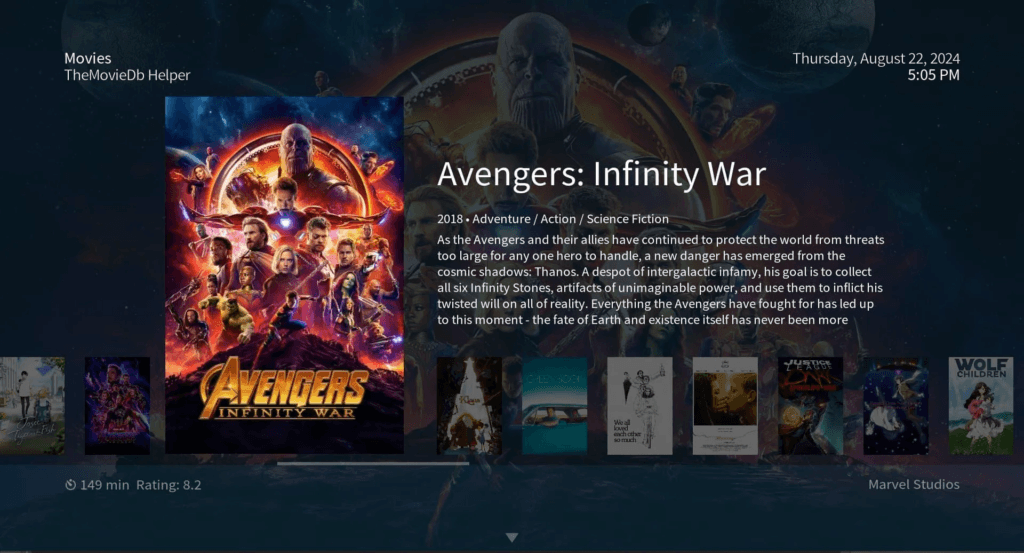
You can change Kodi skins for a change in viewing and sharing media collections on Kodi.
Change the skin by going to Settings > Interface > Skin > Skin. If you only see the default Estuary skin, select Get more… to download others. Skip the Estouchy skin unless you have a touchscreen, because it is designed for touch and can make Kodi hard to use without one.
2. Install Kodi Add-ons
With add-ons, you can access all your favorite shows and channels in one place.
To install add-ons, open the app and click add-ons. Click on the box icon on the top left corner and click on Install from repository > Video add-ons. Now, find the channel you would like to add to Kodi and click on it. Finally, click install and wait for the installation to complete.
Add-ons that come from outside Kodi’s official repository are made by third parties, so check who built one before you install it. Our guide to the best Kodi addons covers the ones that are working right now.
3. Add Multiple Profiles to Kodi
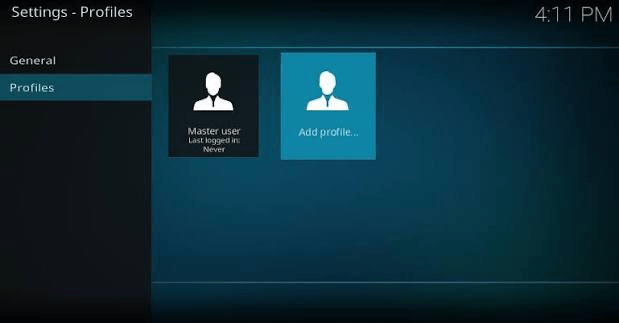
Profiles give each person in your home their own settings, skin, library and favorites. Go to Settings > Profile Settings > Profiles and choose Add profile. Kodi asks you to name the profile, pick a folder for its settings, and decide whether to copy the default user’s settings and media sources.
To switch, open the profile list, highlight a profile, press C on a keyboard to bring up the context menu, and choose Load. You can also log off and log in to another profile. Profiles are not a security feature, so don’t count on them to keep content private.
4. Switch to Windows Mode
Switch between fullscreen and windows mode using \ on your keyboard. By default, Kodi opens in full screen. Use this shortcut to switch to windows mode.
5. Quick Shortcuts
Kodi has a number of shortcuts to help you complete tasks faster:
- P for play
- F for fast forward
- Ctrl + S for screenshot
- I for info about a highlighted media file
- M for the sidebar menu on the home screen, or the on-screen player controls during playback
6. Control Playback
Use C to find a contextual menu of files, folders, and add-ons. This shortcut opens up options like Play, Add to queue, Mark as watched, serving as an alternative to right-clicking on the mouse.
7. Switch to Live TV
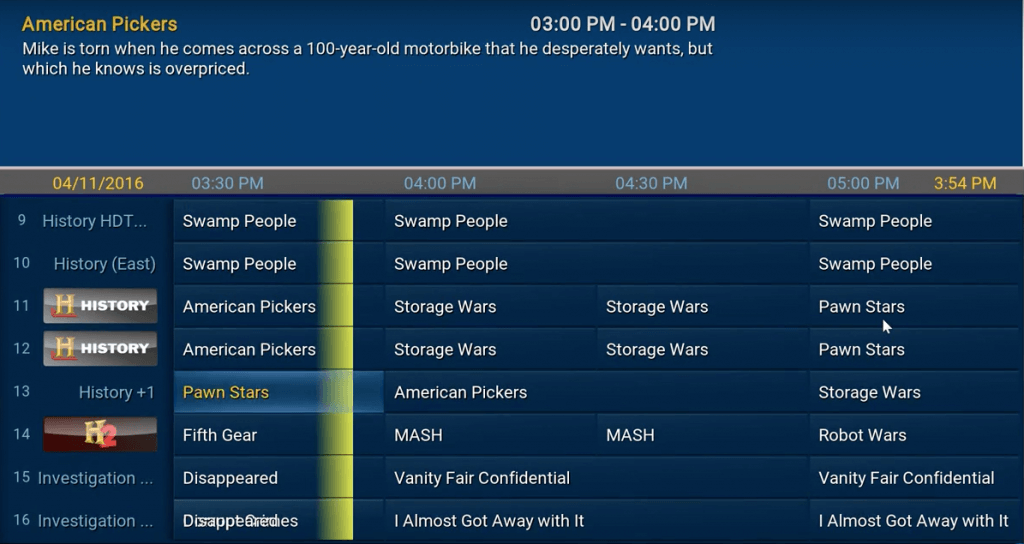
If you have set up Live TV in Kodi, press H to open the Live TV channels window. E opens the TV guide and K opens your recordings. If you have not set up a guide yet, see our guide to setting up an EPG on Kodi.
8. Seek Forward and Backward
Yet another shortcut to make your Kodi streaming hands-free is the use of control commands to seek. Use Ctrl + → and Ctrl + ← to seek forward and backward, respectively.
9. Move Between Queued Videos
If you have queued videos in the playlist on Android TV, use Page up or Page down to move to the queued video.
10. Toggle Fullscreen Playback
Like YouTube, Kodi also provides the toggle fullscreen playback feature. To do so, simply hit Tab to exit full screen while you can search for the next video to play.
11. Close Kodi in a Jiffy
To close Kodi from the home screen, press Ctrl + End. This shortcut only works on Kodi home screen.
12. Fix Audio Delay on Kodi
Audio delay is frustrating and users experience this on almost all streaming platforms. However, Kodi has a shortcut to eliminating the audio delay when the audio and video don’t sync well.
Press A during playback to open the audio delay control, then adjust the slider until the sound matches the picture.
13. Toggle Subtitles On/Off
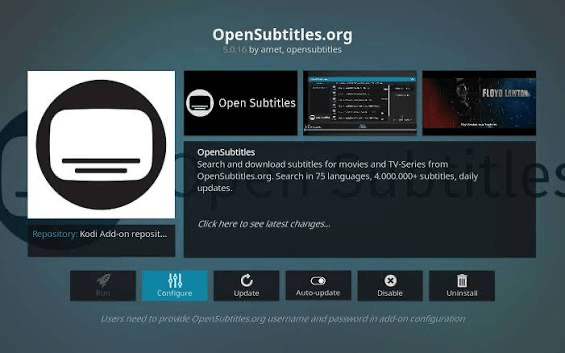
To toggle subtitles On/Off, just press T on the keyboard. Note that you can’t change the subtitle settings with this shortcut. Subtitles settings have to be pre-configured from the Settings and you have to setup your default subtitles service, such as Opensubtitles.
14. Easier Volume Control
For better volume control, utilize the “+” and “-” keys.
To increase or decrease volume to a particular level, press the corresponding keys multiple times until you reach the required volume. To mute a video, press “-” continuously until the volume reaches 0.
15. Switch to Previous Menu in a Snap
Go back to the previous menu or home screen by pressing “Esc”. It avoids taking the long route to the home screen with multiple clicks on the back button.
16. Change the Aspect Ratio and Zoom Mode While Playing
If a video looks stretched or has black bars, press Z during playback to change the aspect ratio. Keep pressing it until the picture looks right.
17. Zoom In and Out on Pictures
When you view pictures in Kodi, press 1 to 9 to jump to a zoom level, 0 to return to normal size, or the plus and minus keys to zoom in and out. This needs a keyboard, so on a Firestick you would pair a Bluetooth or USB keyboard.
18. Shortcuts for Swiping Pictures
Use . for the next picture and , for the previous picture.
19. In a Second, Toggle Debug Logging
To toggle debug logging, press Ctrl + Shift + D. You can also switch it on under Settings > System > Logging. Debug logging adds extra detail to Kodi’s log file, which helps when you are tracking down a crash or a broken add-on. Turn it off again when you are done. Our guide to checking the log files in Kodi shows how to read the result.
20. See What Kodi Is Playing
Press O during playback to show player process info, which lists technical details about the stream Kodi is playing. For more technical overlays, Ctrl + Shift + O shows player debug info and Alt + O shows video debug info.
21. Swiftly Adjust Playback Speed
Playback control can be annoying on any platform. However, Kodi ensures seamless playback control with its keyboard shortcuts.
To change playback speed, press Alt + → to speed up or Alt + ← to slow down. The range is 0.8x to 1.5x. This only works if Sync playback to display is turned on under Settings > Player > Videos, and turning it on disables audio passthrough.
22. Change Language and Region on Kodi
The default language and region on Kodi is English and U.S. To change them, go to Settings > Interface > Regional. Select the language of your preference under the language tab.
Note that, if you select the language first, the region will automatically update. Additionally, you can change the character set and default keyboard layout. This changes the language of the Kodi interface only, not your subtitles or audio.
23. Add a Screensaver
You can set a screensaver on Kodi which runs when the media is on standby. Go to Settings > Interface > Screensaver. Dim is the default and helps prevent screen burn-in. Open Screensaver mode to pick a different one, and use Wait time to set how long Kodi waits before the screensaver starts.
24. Put Kodi to Sleep When Idle
This is one of the lesser-known tips about Kodi. You can enable the sleep option on Kodi when it has been idle or inactive for a certain amount of time. This tip comes handy for those who tend to fall asleep while streaming.
To enable sleep, go to Settings > System > Power saving and set Put display to sleep when idle. The timer goes up in 5-minute steps, from 0 to 120 minutes. After the time you choose, Kodi cuts the video signal, which should make your TV switch itself off.
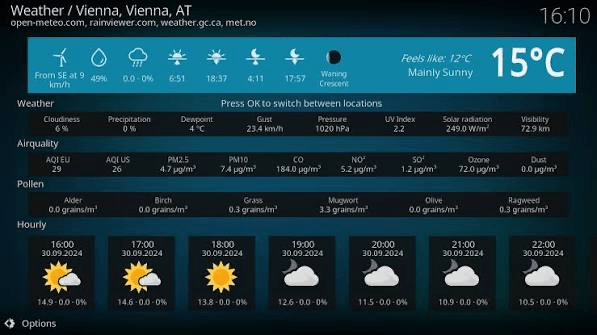
25. Check Weather Stats in Kodi
One of the great things about Kodi is that you can stay on top of the weather in your region. To enable weather stats, go to Settings > Services > Weather and choose Service for weather information. Kodi needs a weather add-on for this, so select Get more… and pick one. The Kodi wiki lists Open-Meteo, NOAA (weather.gov), Met Office, Gismeteo, OzWeather, Multi Weather and Home Assistant Weather.
After it installs, open the weather Settings option to enter your location. To switch between Celsius and Fahrenheit, go to Settings > Interface > Regional and change Temperature unit.
26. Get Rid of the Annoying RSS Feeds
If the RSS feed from the Kodi community annoys you, you’re in luck as you can disable and change the RSS feed. To turn off the scrolling RSS news ticker, go to Settings > Interface > Skin and switch off Show RSS news feeds.
If you would rather use a feed of your own, select Edit RSS. Kodi asks you to install the RSS Editor add-on first, and then you can pick an existing feed or add a new one.
27. Control Kodi From Your Phone
Not everyone knows about this trick, but you can control Kodi from your phone with the Official Kodi Remote, which is available for Android and iOS. In Kodi, go to Settings > Services > Control and turn on Allow remote control via HTTP and Allow remote control from applications on other systems.
The Kodi wiki warns that these settings let anyone on your network control the device, so never expose them to the internet. If you use the web server, leave Require authentication turned on.
28. Download Kodi Repositories
A repository is a collection of add-ons that Kodi can browse and keep updated. Although you can add individual add-ons to Kodi, adding a repository gives you a whole catalog to browse.
You can install add-ons from repositories by going to Add-ons > Install from repository in the main screen. Only add repositories from sources you trust, since a repository can install any add-on it hosts. Our best Kodi addons guide is a good place to start.
29. Change the Settings Level
A lot of Kodi’s options are hidden until you raise the settings level. There are four levels: Basic, Standard (the default), Advanced and Expert. Scroll to the bottom of the settings menu to change it. The higher the level, the more options you see, and the level also affects add-on settings pages. If a menu item in this guide is missing on your device, this is the first thing to check.
30. Jump to a Specific Time in a Video
During playback, type a time with the number keys and press Enter. For example, 1, 2, 3, 4, Enter jumps to 12 minutes and 34 seconds. You can also type a number and press the left or right arrow to jump back or forward by that many seconds, such as 1, 0, ← to go back 10 seconds.
31. Change the Skip Steps
Each press of the right arrow skips ahead 10 seconds, two quick presses skip 30 seconds, and further presses skip 1 minute, 3 minutes and so on. To change those values, go to Settings > Player > Videos and open Skip steps. If you struggle to land the quick double press, raise Skip delay. The default is 750 ms and you can set it anywhere from 250 to 3000 ms.
32. Match the Display Refresh Rate
Go to Settings > Player > Videos and open Adjust display refresh rate. When it is on, Kodi switches your TV or monitor to the refresh rate that matches the video’s frame rate, which gives smoother playback. A movie at roughly 24 frames per second on a TV locked to 50Hz, for example, can show micro stutters in panning shots.
The options are Off (the default), Always, On start/stop and On start. The Kodi wiki does not recommend Always. Your screen may go blank for a few seconds when it switches, and this setting needs compatible hardware.
33. Clear Kodi’s Cache on a Fire TV Stick
If Kodi gets sluggish on a Fire TV Stick, clearing its cache can help. On the stick, go to Settings > Applications > Manage Installed Applications > Kodi, then choose Force Stop and Clear Cache. Do not choose Clear Data unless you want a fresh start, because it wipes your Kodi settings and add-ons. If Kodi keeps crashing or buffering, see our guides to fixing Kodi crashes and stopping buffering in Kodi.
34. Set a Shutdown Timer
Go to Settings > System > Power saving. Shutdown function timer sets how long Kodi waits with no activity before it acts, in 5-minute steps up to 120 minutes. Shutdown function chooses what happens next: Shutdown, Hibernate, Suspend, Quit (the default) or Minimise. These two options only show at the Advanced settings level (see tip 29).
If you often fall asleep while streaming, pair this with tip 24: the display timer turns the picture off, and this one makes Kodi itself quit or shut the device down.
Kodi Tips and Tricks FAQ
What are the best Kodi tips for a Firestick?
Clear Kodi’s cache from Fire TV’s Manage Installed Applications menu (Force Stop, then Clear Cache), remove apps you no longer use because they eat memory on the stick, and control Kodi from your phone (tip 27). The Kodi wiki also lists overheating, a weak power supply and a slow network as common causes of stuttering on a Fire TV Stick.
What are the most useful Kodi keyboard shortcuts?
P plays, Space pauses, X stops, the backslash key switches between fullscreen and windowed mode, T turns subtitles on or off, A opens the audio delay control, Z changes the aspect ratio, and Ctrl + Shift + D toggles debug logging. The cheat sheet at the top of this guide has the full list.
How do I make Kodi run faster?
Clear the cache, remove add-ons and apps you no longer use, and make sure the device has airflow and a good power supply. If a video buffers rather than Kodi itself lagging, see our guide to stopping buffering in Kodi.
How do I change the Kodi skin?
Go to Settings > Interface > Skin > Skin, pick a skin from the list, or select Get more… to download others. Avoid the Estouchy skin unless you have a touchscreen.
Is Kodi legal?
Kodi is free, open-source software, and the app itself is legal. Whether an add-on is legal depends on the content it streams and the law where you live, so check before you use third-party add-ons.
Stay on top of Kodi streaming
The above Kodi tips and tricks will definitely improve your streaming experience on Kodi. If you are new to Kodi, these tips will surely help you get started with it.
From the number of shortcuts and tips mentioned in this article, you will have realised the prowess of Kodi streamer. It allows you to choose any setting making the interface ridiculously user-friendly.
Did we miss any critical Kodi tips? Please let us know in the comments section below.
For more help, see our Complete Kodi Setup Guide for New Users, How to Update Kodi and Best Kodi Addons.